Due to temporary disk availability issue, SQL Server database is in “Recovery Pending“ Status.
Recovery Pending
Let’s step by step repair the database by the following guidelines:
Make sure disks are available and with enough space for databases.
Make a backup of datafiles and logfiles. In case repairing failure, so the alternative repairing methods can be used later against database restoration from this backup.
Manually set database online.
Run CheckDB.
DBCC CHECKDB
You can run CHECKDB with option ‘NO_INFOMSGS’ to eliminate the informational messages.
DBCC CHECKDB ('TestDatabase') WITH NO_INFOMSGS;
In this case, CheckDB has completed without warning, so the database is healthy. Otherwise continue to repair the database.
• Set to single user mode for databases to be repaired.
ALTER DATABASE TestDatabase SET SINGLE_USER;
• Start to repair the database.
First try “REPAIR_REBUILD” option.
DBCC CHECKDB('TestDatabase',REPAIR_REBUILD)
The repaired database can be se to multiple user mode now, if it is successful. Otherwise continue to repair with level ‘REPAIR_ALLOW_DATA_LOSS’.
Please note the option name explains the potential data loss could happen.
If the repairing is successful, the database can be set back to multiple user status to open to users.
If the repairing is still a failure, then continue to next step for repairing with ‘EMERGENCY’ mode.
ALTER DATABASE TestDatabase SET EMERGENCY;
ALTER DATABASE TestDatabase SET SINGLE_USER;
DBCC CHECKDB ('TestDatabase',REPAIR_ALLOW_DATA_LOSS) WITH  NO_INFOMSGS,ALL_ERRORMSGS;
Finally set database to ‘online’ and multiple user mode.
ALTER DATABASE TestDatabase SET ONLINE;
ALTER DATABASE TestDatabase SET MULTI_USER;
SELECT name, physical_name AS NewLocation, state_desc AS OnlineStatus
FROM sys.master_files
WHERE database_id = DB_ID(N'TestDatabase')
GO
2) Run the following SQL script to set a new location for SQL database files.
ALTER DATABASE TestDatabase
    MODIFY FILE ( NAME = TestDatabase,
                  FILENAME = 'C:\MSSQLDB\MSSQL15.MSSQLNODE1INST1\UserDB\Data\TestDatabase.mdf');
GO

ALTER DATABASE TestDatabase
    MODIFY FILE ( NAME = TestDatabase_log,
                  FILENAME = 'C:\MSSQLDB\MSSQL15.MSSQLNODE1INST1\UserDB\Log\TestDatabase_log.ldf');
GO
3) Run the following SQL script to take SQL database offline:
ALTER DATABASE TestDatabase SET OFFLINE; GO
4) Move mdf and ldf files to the new location specified in the statement of step2.
5) Now database can be set online by running the following query.
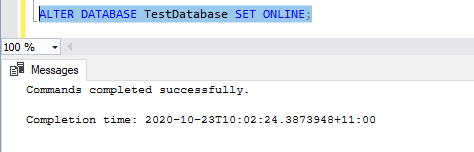
ALTER DATABASE TestDatabase SET ONLINE;
GO
6) To verify the results by running the following query.
SELECT name, physical_name AS NewLocation, state_desc AS OnlineStatus
FROM sys.master_files
WHERE database_id = DB_ID(N'TestDatabase')
GO
Move Database Files By using Detach and Attach Function
Launch SSMS.
Login to the SQL instance with an account that has the SysAdmin server role.
Navigate to “Databases“.
Right click the database that files to be moved to new location.
Select “Properties“.
In the Properties window, in the Select a Page panel, click “Files“.
Record down the paths and filenames for the database.
Click “OK”.
Right click the same database again.
Select “Tasks “, then click “Detach“.
In the Detach Database window, check the box “Drop Connections“.
Click “OK“.
Launch Windows Explorer.
Browse to the path recorded in step 7.
Move the database’s files to the new location.
Record down the paths where you have just moved the files to.
Return to SSMS again.
Right click “Databases“
Select “Attach“.
In the Attach Databases window, click “Add“.
Browse to the path you wrote down in step 16.
Select the .mdf filename for the database.
Click “OK”.
If the other files are not found, click the ellipsis next to the filename that is not found.
In the Locate Database Files window, “browse” to the location of the file for the database that you wrote down in step 16.
In SQL Server Management Studio, you will only see the local drives available to SQL Server database engine. In this article we will take a look at the approach on how to configure SQL Server to access shared folder to perform database backup or restore commands, even further the SQL Server datafiles and logfiles can be stored on to shared folders in Oracle VirtualBox.
Install Guest Additions
The first thing is to install guest additions if not yet as per following instructions.
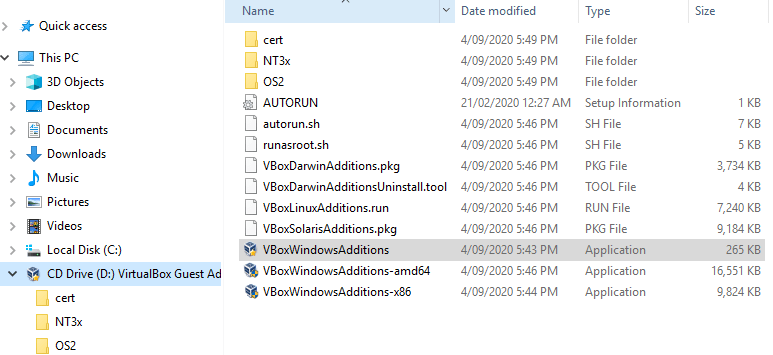
Navagite to Devices->Optical Drive->Choose a disk file-> highlight “VboxGuestAdditions” file. Then click Open.
VirtualBox Guest Addition
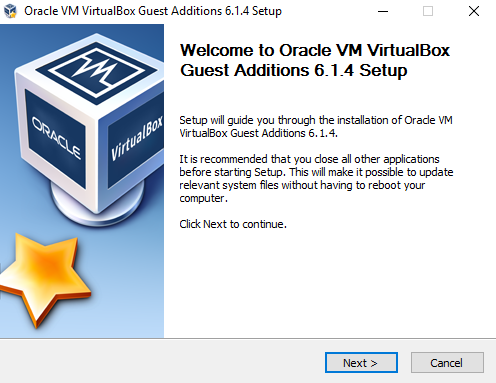
Double-click on this CD drive to launch the Oracle VM VirtualBox guest additional setup.
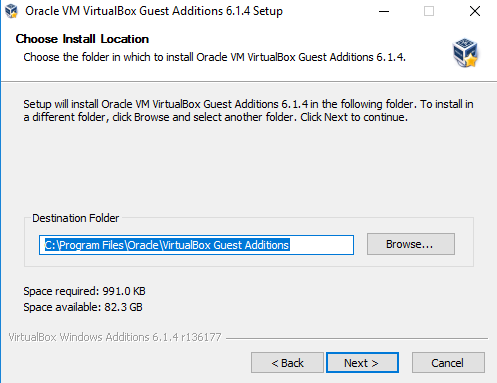
Click Next and select the destination folder. It requires approx 1 MB space in the drive.
VirtualBox Guest Addition
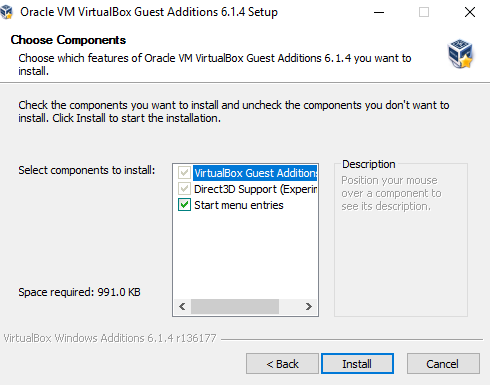
In the next step, it shows the components to install.
VirtualBox Guest Addition
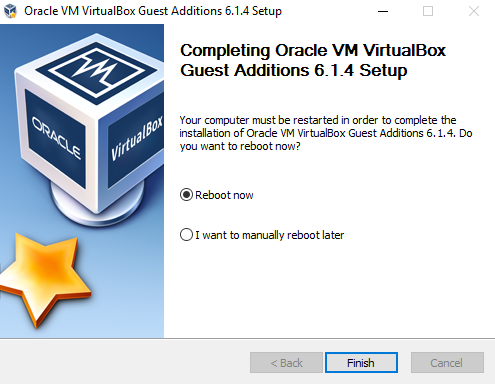
Reboot the VM to complete the guest additional feature for a VM.
VirtualBox Guest Addition
Set up VM Shared Folders
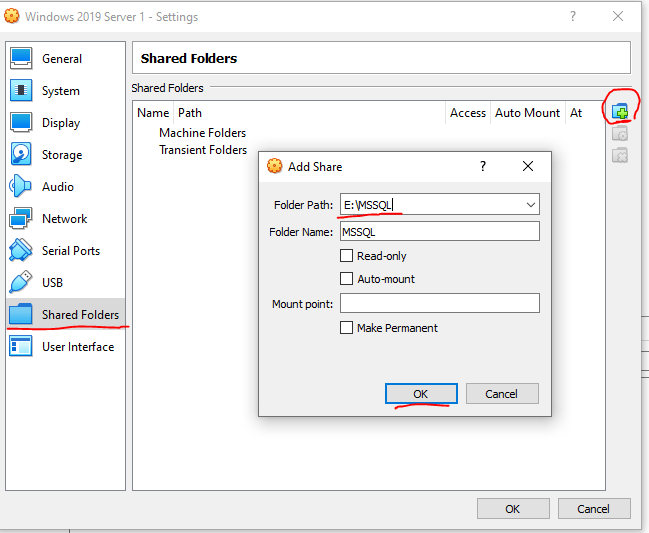
VM macine -> Settings->Shared Folders->Add New Shared Folder(+)->Choose Folder Path.
Click OK.
VirtualBox Shared Folder
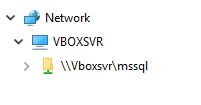
Go to File Explorer, we can see the following expected network diagram.
Network VBOXSVR of Shared Folder
Enable xp_cmdshell Command in SQL Server
xp_cmdshell is disabled by default. so we need use sp_configure command to enable it as shown below:
EXEC sp_configure 'show advanced options', 1;
GO
RECONFIGURE;
GO

EXEC sp_configure 'xp_cmdshell',1
GO
RECONFIGURE
GO
Define the Share Drive for SQL
Now we need define the shared folder with xp_cmdshell command of SQL server as below:
EXEC XP_CMDSHELL 'net use Z: \VBOXSVR\mssql'
To verify the new drive, we can use the below command that will show you all files in that newly mapped drive:
EXEC XP_CMDSHELL 'Dir Z:'
To un-map the shared folder drive from SQL server by:
exec xp_cmdShell 'net use Z: /delete'
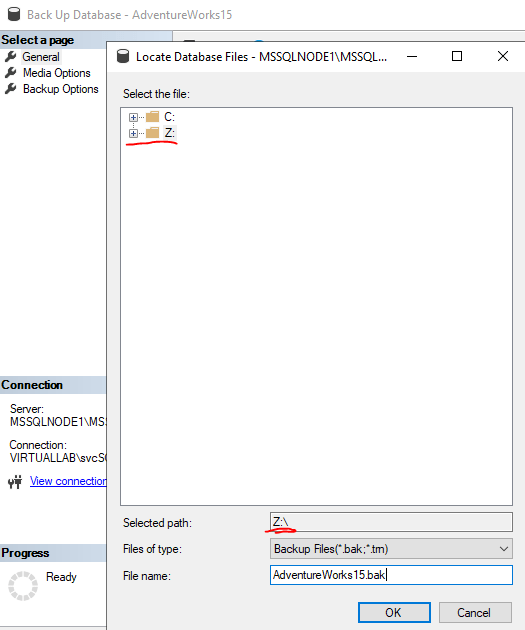
Test the Shared Folder Drive in SQL Server
Backup Database onto Shared Folder Drive from SSMS
SSMS backup database
SSMS backup database
SSMS backup database
Backup Database onto Shared Folder Drive by Running SQL Script
BACKUP DATABASE [AdventureWorks15] TO DISK = N'Z:\AdventureWorks15.bak'
WITH NOFORMAT, NOINIT, NAME = N'AdventureWorks15-Full Database Backup',
SKIP, NOREWIND, NOUNLOAD, STATS = 10
GO
Query the logical file names of the database from the previous backup.
RESTORE FILELISTONLY
FROM DISK = 'Z:\AdventureWorks15.bak'
Restore the backup to a new database by using the logicalname column of the previous step.
RESTORE DATABASE AdventureWorks15New
FROM DISK = 'Z:\AdventureWorks15.bak'
WITH MOVE 'AdventureWorks15' TO 'Z:\AdventureWorks15New.mdf',
MOVE 'AdventureWorks15_log' TO 'Z:\AdventureWorks15New_log.ldf'
Processed 25016 pages for database 'AdventureWorks15New', file 'AdventureWorks15' on file 1.
Processed 294 pages for database 'AdventureWorks15New', file 'AdventureWorks15_log' on file 1.
RESTORE DATABASE successfully processed 25310 pages in 5.330 seconds (37.097 MB/sec).
Completion time: 2020-09-21T18:29:04.4634020+10:00
So all works as expected. The shared folder now can be used to store backups, and also datafiles/logfiles of a SQL server.
Using Oracle SQL Developer to Connect to Microsoft SQL Server
A client likes to use Oracle SQL Developer to connect to Microsoft SQL server. During the configurations, some errors occurred. This post shows how to resolve the configuration issues from Oracle SQL Developer and third party libraries .
Subscribe to get access
Read more of this content when you subscribe today.
This post demonstrates how to build SQL-Server High Availability feature Always On. All the step by step building procedures make use of Virtual machine, Windows OS, Networks, Active Directory Domain, DNS, Firewall, SQL Server, Clustering, etc.











 Make DBA Life Easy