Datapatch: Unsupported named object type for bind parameter error

While running “datapatch -verbose”, the following errors occur:

$ ./datapatch -verbose
...
..
.


Unsupported named object type for bind parameter at /u01/app/oracle/product/19.0.0/dbhome_1/sqlpatch/sqlpatch.pm line 5827.


Please refer to MOS Note 1609718.1 and/or the invocation log
/u01/app/oracle/cfgtoollogs/sqlpatch/sqlpatch_52411_2025_01_01_10_37_20/sqlpatch_invocation.log
for information on how to resolve the above errors.

Check line 5827 of file “/u01/app/oracle/product/19.0.0/dbhome_1/sqlpatch/sqlpatch.pm”:

5827 $patch_metadata_stmt->bind_param(":patch_descriptor", $descriptor, {ora_type => ORA_XMLTYPE});

SOLUTION

Subscribe to get access

Read more of this content when you subscribe today.

How to Discover Autonomous Database in Oracle Enterprise Manager (OEM)

This post demonstrate how to discover your Autonomous Database in OEM.

Here EM Agent on OMS (Oracle Management Service ) is used to remotely monitor the Autonomous Database ( ADB ).

Prerequisites

1. In this example an ADW will be discovered and monitored by the on-premise OEM by using OMS central agent for convenience .

2. Connect to the Autonomous Database (via Database Actions or SQL Developer) and unlock ADBSNMP user account.

SQL> alter user adbsnmp identified by "<password>" account unlock;

3. Check adbsnmp user and grant additional privileges required for ADB monitoring to the ADB_MONITOR role and then grant to ADBSNMP user, if not yet.

SQL> grant create session,select_catalog_role,select any dictionary to ADB_MONITOR;
SQL> grant ADB_MONITOR to adbsnmp;

4. Download Client Credential Wallet from Autonomous Database.

5. Configure Network Rules for communication between EM and ADB. 

Network RequirementSourceDestinationPortProtocol
ADBSNMP MonitoringRemote Agent HostAutonomous Database Target1521/1522TCP
Upload to EMRemote Agent HostOracle Management Service (OMS) Host4903TCP
Comm with AgentOracle Management Service (OMS) HostRemote Agent host3872TCP

Verify from Remote Agent Host that you can access the DB service and EM Upload port:

$ telnet adb 1522
Trying xx.xx.xx.xx
Connected to adb
Escape character is '^]'.


$ telnet oem 4903
Trying xx.xx.xx.xx...
Connected to oem.
Escape character is '^]'.

6. Check for additional requirements for Service Gateway and IAM policies that are required for monitoring Autonomous Database in EM.

https://docs.oracle.com/en/enterprise-manager/cloud-control/enterprise-manager-cloud-control/13.5/emadb/prerequisite-tasks-autonomous-databases-shared.html

7. In OCI Console, create IAM Group eg. EMGroup.

This step is not required here since we make use of on-premise OEM and its central agent.


Allow group EMGroup to manage autonomous-database in compartment <compartment_for_Autonomous_Database>
Allow group EMGroup to read resource-availability in compartment <compartment_for_Autonomous_Database>
Allow group EMGroup to read limits in compartment <compartment_for_Autonomous_Database>

Allow group EMGroup to manage orm-stacks in compartment <compartment_for_EM_stack>
Allow group EMGroup to manage instance-family in compartment <compartment_for_EM_stack>
Allow group EMGroup to manage volume-family in compartment <compartment_for_EM_stack>
Allow group EMGroup to manage load-balancers in compartment <compartment_for_EM_stack>
Allow group EMGroup to manage virtual-network-family in compartment <compartment_for_EM_stack>
Allow group EMGroup to manage file-family in compartment <compartment_for_EM_stack>
Allow group EMGroup to manage autonomous-database-family in compartment <compartment_for_EM_stack>
Allow group EMGroup to manage orm-jobs in compartment <compartment_for_EM_stack>
Allow group EMGroup to read resource-availability in compartment <compartment_for_EM_stack>
Allow group EMGroup to read limits in compartment <compartment_for_EM_stack>

Discover Autonomous Database Target

1. Login to EM Console.

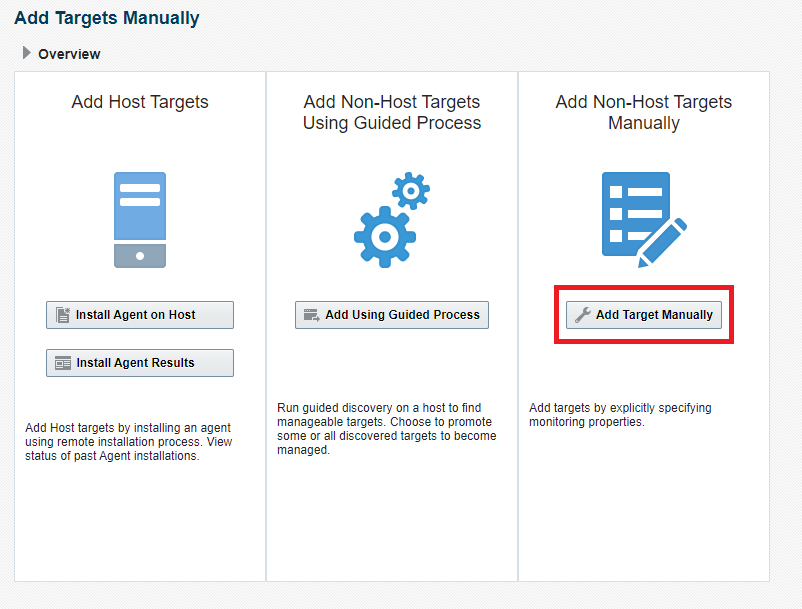
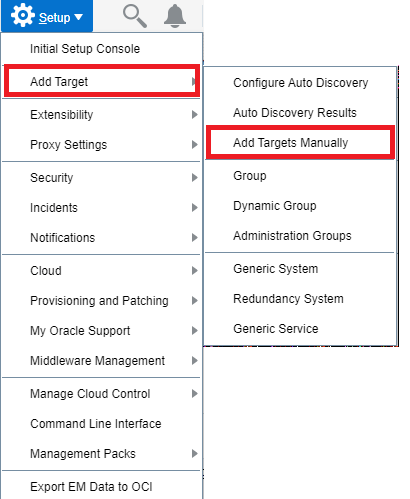
2. Navigate to Setup Add Target > Add Targets Manually

3. Click on Add Target Manually

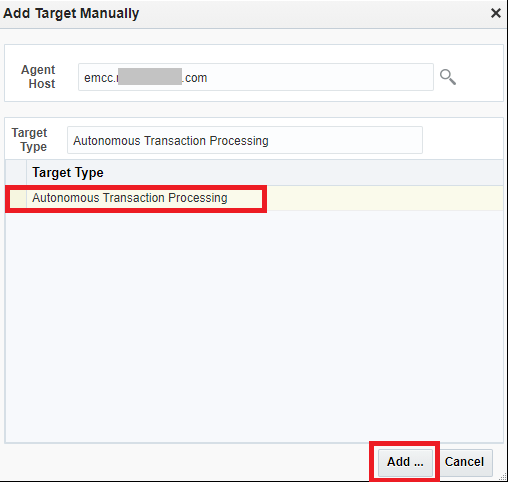
4. Specify the Agent host that will be remotely monitoring the Autonomous Database.

(In my example, I will be using the EM Agent Host running on my OMS host: emcc.xxx.com, this EM agent can be on any host)

Choose Target Type (eg. Autonomous Transaction Processing)

Click Add

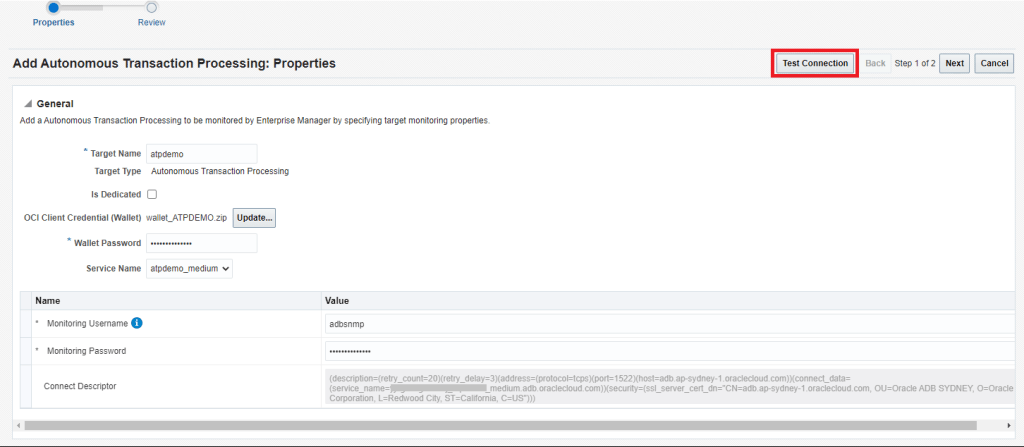
5. Complete the details for the Autonomous Database and then click on Test Connection

  • Target Name
  • Upload the Credential Wallet for the Autonomous Database
  • Wallet Password
  • Service Name
  • Monitoring Username (eg. adbsnmp) and password


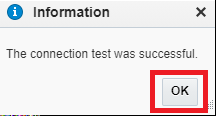
Verify Connection is Successful

6. Click on Next

7. Review Details and then click on Submit

8. The target should now be discovered successfully.

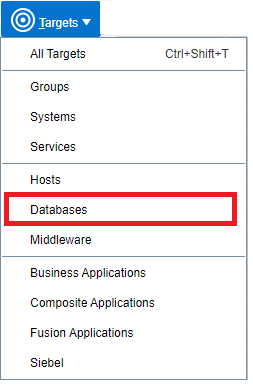
9. From EM menu, navigate to TARGETS > DATABASES

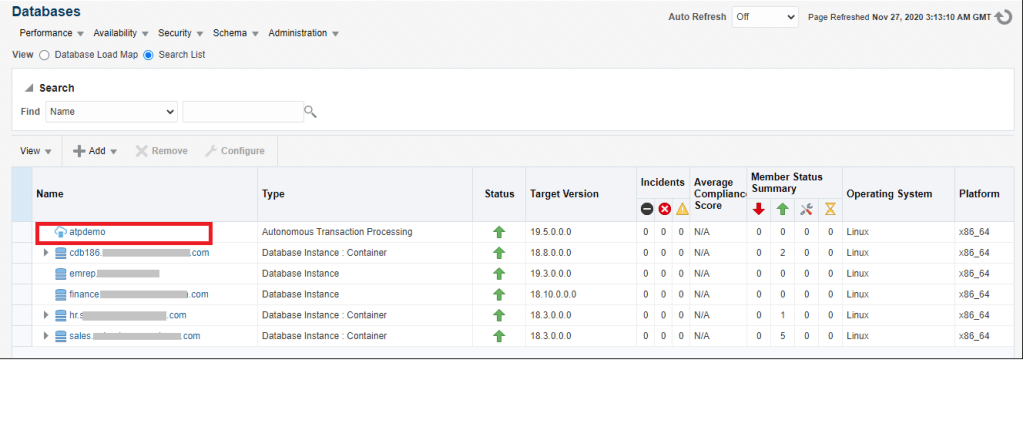
10. You should now see the Autonomous Database discovered in the Database Target Page

This completes the discovery of the Autonomous Database in Enterprise Manager.

How to find the PID of the process using a specific port?

# lsof -i :9933
COMMAND PID USER FD TYPE DEVICE SIZE/OFF NODE NAME
oracle_51 51639 oracle 6u IPv4 3233899771 0t0 UDP localhost.localdomain:9933
# netstat -nlp|grep 9933
udp 1053952 0 127.0.0.1:9933 0.0.0.0:* 51639/oracleTESTDB
# fuser -v -n udp 9933
USER PID ACCESS COMMAND
9933/udp: oracle 51639 F.... oracle_51639_TESTDB

Check Session id(SID) and SQL statement from OS process id(PID) in Oracle

SELECT b.spid,
a.sid,
a.serial#,
a.username,
a.osuser
FROM v$session a, v$process b
WHERE a.paddr = b.addr AND b.spid = '&spid'
ORDER BY b.spid

-- Check SQL statement associated with Process id in Oracle

SELECT RPAD('USERNAME : ' || s.username, 80) ||
RPAD('OSUSER : ' || s.osuser, 80) ||
RPAD('PROGRAM : ' || s.program, 80) ||
RPAD('SPID : ' || p.spid, 80) ||
RPAD('SID : ' || s.sid, 80) ||
RPAD('SERIAL# : ' || s.serial#, 80) ||
RPAD('MACHINE : ' || s.machine, 80) ||
RPAD('TERMINAL : ' || s.terminal, 80)
--RPAD('SQL TEXT : ' || q.sql_text, 80)
FROM v$session s ,v$process p ,v$sql q
WHERE s.paddr = p.addr AND s.sql_address = q.address AND s.sql_hash_value = q.hash_value
AND p.spid = '&spid'

EM 13c: How to Change Monitoring Credentials For WebLogic Domain Target

We changed WebLogic user password for enforcing security principal, then WebLogic domain targets show down on OEM. Hence we need update the monitoring credentials on OEM for WebLogic domain.

1) Verify the correct Admin Server hostname and password are correct:

EM Console > Middleware Targets > click the WebLogic Domain > WebLogic Domain dropdown menu > choose WebLogic Server Administration Console

Log in with this username/password

and note the Administration Server hostname as indicated in
- the url at the top of the page > https://<AdminServerFQDN>:<port>/console/...
and/or
- under Servers > AdminServer(admin) > Machine column shows Administration Server hostname 

This step is necessary only if this WebLogic Domain is monitored by multiple agents:
2) Put the WebLogic Domain target under blackout:
Monitoring > Blackouts > Create… > > choose “Blackout” (Create)
Choose “Enable Full blackout…”
Add the WebLogic Domain target (select)

3) Modify the password for the WebLogic Server Administr Server using the hostname and password verified in step 1

There are 2 possible ways to navigate to the Monitoring Credentials in EM:

  • Setup (top right) > Security > Monitoring credentials > choose Oracle WebLogic Domain and click “Manage Monitoring Credentials” > choose the Domain and “Set Credentials”
    The is Domain and Node Manager credentials are set in separate places here
    Test and Save configuration

or

  • From the WebLogic Domain’s Home Page > under WebLogic Domain dropdown men > choose Target setup > Monitoring Credentials
    Both the Domain and Node Manager credentials are set on the same page
    Test and Save configuration

This step is necessary only if step 2 was implemented:
4) If Blackout has not already expired,

Monitoring > Blackouts > View by Blackout Name > choose blackout and “Stop”

5) Refresh WebLogic domain.
From WebLogic Domain home page > WebLogic Domain dropdown > choose “Refresh WebLogic Domain”

EM 13c: Updating Monitoring Credentials For WebLogic Domain Target shows “Password at Management Agent does not match error” (Doc ID 2610563.1)

Oracle Data Guard Most Used Commands

Note: Static “_DGMGRL” entries are no longer needed as of Oracle Database 12.1.0.2 and later release in Oracle Data Guard Broker configurations that are managed by Oracle Restart, RAC On Node or RAC as the Broker will use the clusterware to restart an instance. ( Oracle Data Guard Broker and Static Service Registration (Doc ID 1387859.1)

DGMGRL> connect sys@testdb
Password:
Connected to "TESTDB"
Connected as SYSDBA.
DGMGRL> show configuration;

Configuration - dg_testdb

Protection Mode: MaxPerformance
Members:
testdb - Primary database
stestdb - Physical standby database

Fast-Start Failover: Disabled

Configuration Status:
SUCCESS (status updated 20 seconds ago)

Switchover

DGMGRL> switchover to stestdb;
Performing switchover NOW, please wait...
New primary database "stestdb" is opening...
Oracle Clusterware is restarting database "testdb" ...
Connected to "TESTDB"
Switchover succeeded, new primary is "stestdb"

-- After switchover, run 'srvctl config database -d", the database role has been changed by Data Guard Broker automatically.

$ srvctl config database -d STESTDB
Database unique name: STESTDB
Database name: testdb
.
Start options: open
Stop options: immediate
Database role: PRIMARY

...
..
.

$ srvctl config database -d testdb
Database unique name: TESTDB
Database name: TESTDB
.
Start options: mount
Stop options: immediate
Database role: PHYSICAL_STANDBY

Show Lag

DGMGRL>  SHOW CONFIGURATION  lag

Configuration - dg_testdb

Protection Mode: MaxPerformance
Members:
testdb - Primary database
stestdb - Physical standby database
Transport Lag: 0 seconds (computed 0 seconds ago)
Apply Lag: 2 seconds (computed 0 seconds ago)

Fast-Start Failover: Disabled

Configuration Status:
SUCCESS (status updated 28 seconds ago)
DGMGRL> show database "stestdb";

Database - stestdb

Role: PHYSICAL STANDBY
Intended State: APPLY-ON
Transport Lag: 0 seconds (computed 0 seconds ago)
Apply Lag: 0 seconds (computed 0 seconds ago)
Average Apply Rate: 322.00 KByte/s
Real Time Query: OFF
Instance(s):
TESTDB1
TESTDB2 (apply instance)

Database Status:
SUCCESS

TRANSPORT-ON / TRANSPORT-OFF

DGMGRL>  show database "testdb";

Database - testdb

Role: PRIMARY
Intended State: TRANSPORT-ON
Instance(s):
TESTDB1
TESTDB2

Database Status:
SUCCESS

DGMGRL> EDIT DATABASE testdb SET STATE='TRANSPORT-OFF';
Succeeded.
DGMGRL> show database "testdb";

Database - testdb

Role: PRIMARY
Intended State: TRANSPORT-OFF
Instance(s):
TESTDB1
TESTDB2

Database Status:
SUCCESS

APPLY-ON / APPLY-OFF

DGMGRL>  show database "stestdb";

Database - stestdb

Role: PHYSICAL STANDBY
Intended State: APPLY-ON
Transport Lag: 0 seconds (computed 70 seconds ago)
Apply Lag: 0 seconds (computed 70 seconds ago)
Average Apply Rate: 114.00 KByte/s
Real Time Query: OFF
Instance(s):
TESTDB1
TESTDB2 (apply instance)

Database Status:
SUCCESS

DGMGRL> EDIT DATABASE stestdb SET STATE='APPLY-OFF';
Succeeded.
DGMGRL> show database "stestdb";

Database - stestdb

Role: PHYSICAL STANDBY
Intended State: APPLY-OFF
Transport Lag: 0 seconds (computed 215 seconds ago)
Apply Lag: 0 seconds (computed 215 seconds ago)
Average Apply Rate: (unknown)
Real Time Query: OFF
Instance(s):
TESTDB1
TESTDB2 (apply instance)

Database Status:
SUCCESS

Change apply instance

DGMGRL> edit database  TESTDB set state='apply-off';
Succeeded.

DGMGRL> edit database TESTDB set state='apply-on' with apply instance ='TESTDB1';

Succeeded.

Monitorable (Read-Only) Properties

DGMGRL>   show database verbose testdb;
...
..
.
InconsistentProperties = '(monitor)'
InconsistentLogXptProps = '(monitor)'
LogXptStatus = '(monitor)'
SendQEntries = '(monitor)'
RecvQEntries = '(monitor)'
...
..
.

DGMGRL> show database testdb 'InconsistentLogXptProps';
INCONSISTENT LOG TRANSPORT PROPERTIES
INSTANCE_NAME STANDBY_NAME PROPERTY_NAME MEMORY_VALUE BROKER_VALUE

Configurable (Changeable) Properties

DGMGRL>  SHOW DATABASE testdb  LogXptMode;
LogXptMode = 'ASYNC'

DGMGRL> EDIT DATABASE testdb SET PROPERTY LogXptMode='SYNC';
Property "logxptmode" updated

DGMGRL> SHOW DATABASE testdb LogXptMode;
LogXptMode = 'SYNC'

Validate database spfile

DGMGRL> validate database  TESTDB  spfile;
This command cannot be used for the primary database.

DGMGRL> validate database STESTDB spfile;
...
..
.

processes:
testdb (PRIMARY) : 3000
stestdb : 6400
...
..
.

Validate static connect identifier

DGMGRL> validate static connect identifier for all
Oracle Clusterware on database "testdb" is available for database restart.

Oracle Clusterware on database "stestdb" is available for database restart.

validate network configuration for all

DGMGRL> validate network configuration for all
Oracle Clusterware on database "testdb" is available for database restart.

Oracle Clusterware on database "stestdb" is available for database restart.

DGMGRL> validate network configuration for all
Connecting to instance "TESTDB2" on database "testdb" ...
Connected to "TESTDB"
Checking connectivity from instance "TESTDB2" on database "testdb" to instance "STESTDB2" on database "stestdb"...
Succeeded.
Checking connectivity from instance "TESTDB2" on database "testdb" to instance "STESTDB" on database "stestdb"...
Succeeded.
Connecting to instance "TESTDB1" on database "testdb" ...
Connected to "TESTDB"
Checking connectivity from instance "TESTDB1" on database "testdb" to instance "STESTDB2" on database "stestdb"...
Succeeded.
Checking connectivity from instance "TESTDB1" on database "testdb" to instance "STESTDB" on database "stestdb"...
Succeeded.
Connecting to instance "STESTDB2" on database "stestdb" ...
Connected to "STESTDB"
Checking connectivity from instance "STESTDB2" on database "stestdb" to instance "TESTDB2" on database "testdb"...
Succeeded.
Checking connectivity from instance "STESTDB2" on database "stestdb" to instance "TESTDB1" on database "testdb"...
Succeeded.
Connecting to instance "STESTDB" on database "stestdb" ...
Connected to "STESTDB"
Checking connectivity from instance "STESTDB" on database "stestdb" to instance "TESTDB2" on database "testdb"...
Succeeded.
Checking connectivity from instance "STESTDB" on database "stestdb" to instance "TESTDB1" on database "testdb"...
Succeeded.

Oracle Clusterware on database "testdb" is available for database restart.

Oracle Clusterware on database "stestdb" is available for database restart.

DGMGRL>

Validate primary and standby database

DGMGRL> validate database testdb

Database Role: Primary database

Ready for Switchover: Yes

Flashback Database Status:
ttestdb: Off

Managed by Clusterware:
testdb: YES

DGMGRL> validate database stestdb

Database Role: Physical standby database
Primary Database: testdb

Ready for Switchover: Yes
Ready for Failover: Yes (Primary Running)

Flashback Database Status:
testdb: Off
stestdb: Off

Managed by Clusterware:
testdb: YES
stestdb: YES