How to Discover Autonomous Database in Oracle Enterprise Manager (OEM)

This post demonstrate how to discover your Autonomous Database in OEM.

Here EM Agent on OMS (Oracle Management Service ) is used to remotely monitor the Autonomous Database ( ADB ).

Prerequisites

1. In this example an ADW will be discovered and monitored by the on-premise OEM by using OMS central agent for convenience .

2. Connect to the Autonomous Database (via Database Actions or SQL Developer) and unlock ADBSNMP user account.

SQL> alter user adbsnmp identified by "<password>" account unlock;

3. Check adbsnmp user and grant additional privileges required for ADB monitoring to the ADB_MONITOR role and then grant to ADBSNMP user, if not yet.

SQL> grant create session,select_catalog_role,select any dictionary to ADB_MONITOR;
SQL> grant ADB_MONITOR to adbsnmp;

4. Download Client Credential Wallet from Autonomous Database.

5. Configure Network Rules for communication between EM and ADB. 

Network RequirementSourceDestinationPortProtocol
ADBSNMP MonitoringRemote Agent HostAutonomous Database Target1521/1522TCP
Upload to EMRemote Agent HostOracle Management Service (OMS) Host4903TCP
Comm with AgentOracle Management Service (OMS) HostRemote Agent host3872TCP

Verify from Remote Agent Host that you can access the DB service and EM Upload port:

$ telnet adb 1522
Trying xx.xx.xx.xx
Connected to adb
Escape character is '^]'.


$ telnet oem 4903
Trying xx.xx.xx.xx...
Connected to oem.
Escape character is '^]'.

6. Check for additional requirements for Service Gateway and IAM policies that are required for monitoring Autonomous Database in EM.

https://docs.oracle.com/en/enterprise-manager/cloud-control/enterprise-manager-cloud-control/13.5/emadb/prerequisite-tasks-autonomous-databases-shared.html

7. In OCI Console, create IAM Group eg. EMGroup.

This step is not required here since we make use of on-premise OEM and its central agent.


Allow group EMGroup to manage autonomous-database in compartment <compartment_for_Autonomous_Database>
Allow group EMGroup to read resource-availability in compartment <compartment_for_Autonomous_Database>
Allow group EMGroup to read limits in compartment <compartment_for_Autonomous_Database>

Allow group EMGroup to manage orm-stacks in compartment <compartment_for_EM_stack>
Allow group EMGroup to manage instance-family in compartment <compartment_for_EM_stack>
Allow group EMGroup to manage volume-family in compartment <compartment_for_EM_stack>
Allow group EMGroup to manage load-balancers in compartment <compartment_for_EM_stack>
Allow group EMGroup to manage virtual-network-family in compartment <compartment_for_EM_stack>
Allow group EMGroup to manage file-family in compartment <compartment_for_EM_stack>
Allow group EMGroup to manage autonomous-database-family in compartment <compartment_for_EM_stack>
Allow group EMGroup to manage orm-jobs in compartment <compartment_for_EM_stack>
Allow group EMGroup to read resource-availability in compartment <compartment_for_EM_stack>
Allow group EMGroup to read limits in compartment <compartment_for_EM_stack>

Discover Autonomous Database Target

1. Login to EM Console.

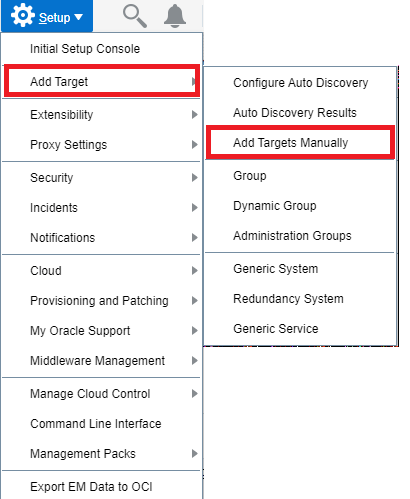
2. Navigate to Setup Add Target > Add Targets Manually

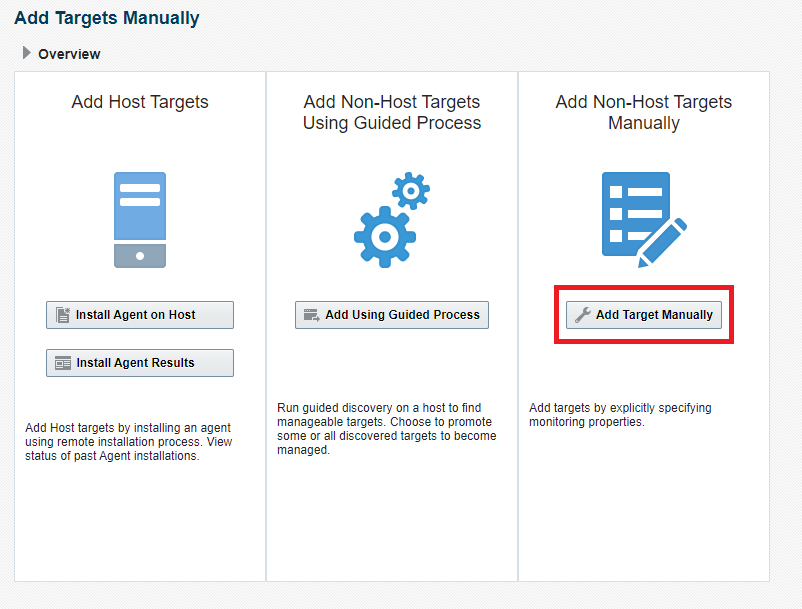
3. Click on Add Target Manually
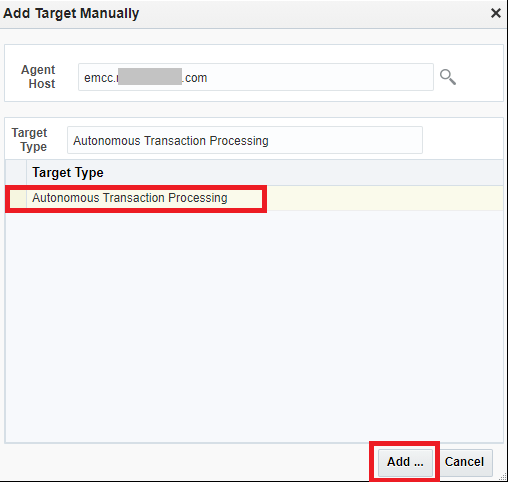
4. Specify the Agent host that will be remotely monitoring the Autonomous Database.

(In my example, I will be using the EM Agent Host running on my OMS host: emcc.xxx.com, this EM agent can be on any host)

Choose Target Type (eg. Autonomous Transaction Processing)

Click Add
5. Complete the details for the Autonomous Database and then click on Test Connection

  • Target Name
  • Upload the Credential Wallet for the Autonomous Database
  • Wallet Password
  • Service Name
  • Monitoring Username (eg. adbsnmp) and password
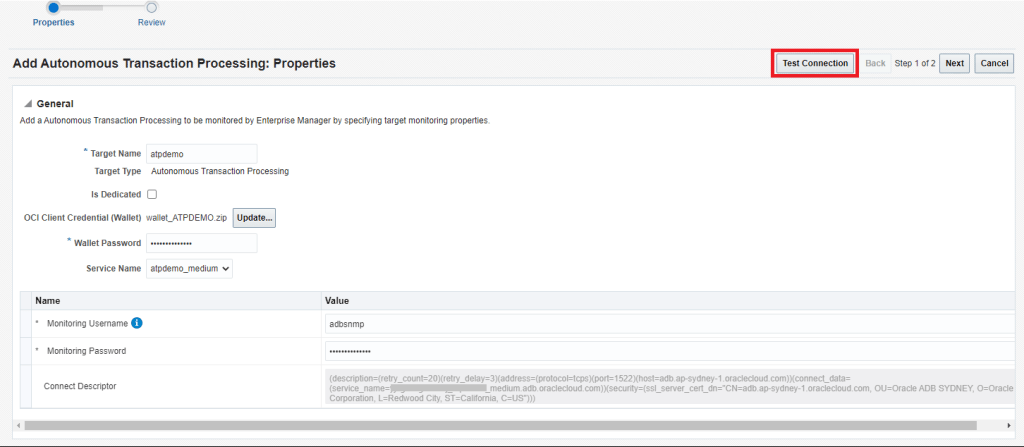

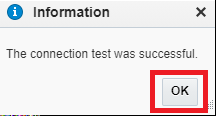
Verify Connection is Successful
6. Click on Next

7. Review Details and then click on Submit

8. The target should now be discovered successfully.

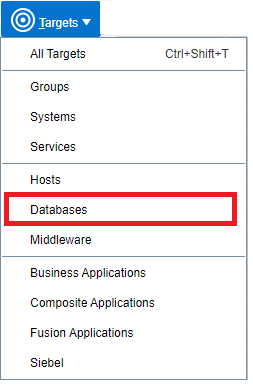
9. From EM menu, navigate to TARGETS > DATABASES
10. You should now see the Autonomous Database discovered in the Database Target Page
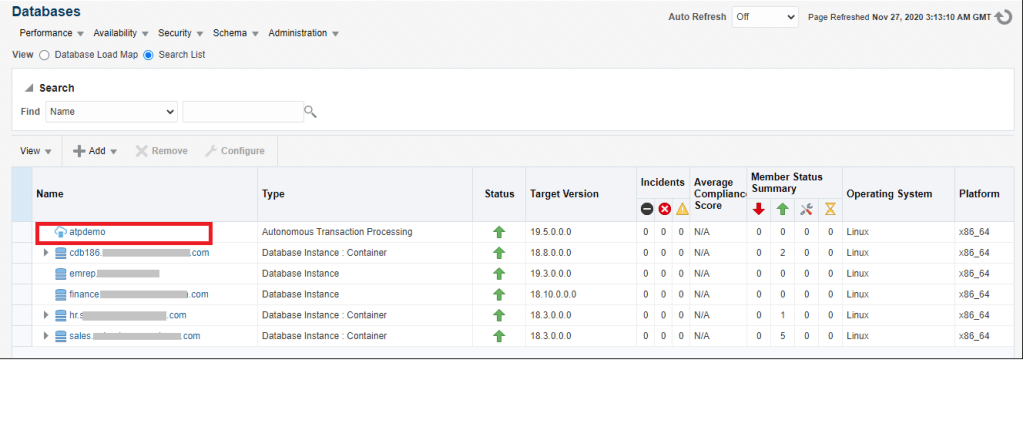
This completes the discovery of the Autonomous Database in Enterprise Manager.

EM 13c: How to Change Monitoring Credentials For WebLogic Domain Target

We changed WebLogic user password for enforcing security principal, then WebLogic domain targets show down on OEM. Hence we need update the monitoring credentials on OEM for WebLogic domain.

1) Verify the correct Admin Server hostname and password are correct:

EM Console > Middleware Targets > click the WebLogic Domain > WebLogic Domain dropdown menu > choose WebLogic Server Administration Console

Log in with this username/password

and note the Administration Server hostname as indicated in
- the url at the top of the page > https://<AdminServerFQDN>:<port>/console/...
and/or
- under Servers > AdminServer(admin) > Machine column shows Administration Server hostname 

This step is necessary only if this WebLogic Domain is monitored by multiple agents:
2) Put the WebLogic Domain target under blackout:
Monitoring > Blackouts > Create… > > choose “Blackout” (Create)
Choose “Enable Full blackout…”
Add the WebLogic Domain target (select)

3) Modify the password for the WebLogic Server Administr Server using the hostname and password verified in step 1

There are 2 possible ways to navigate to the Monitoring Credentials in EM:

  • Setup (top right) > Security > Monitoring credentials > choose Oracle WebLogic Domain and click “Manage Monitoring Credentials” > choose the Domain and “Set Credentials”
    The is Domain and Node Manager credentials are set in separate places here
    Test and Save configuration

or

  • From the WebLogic Domain’s Home Page > under WebLogic Domain dropdown men > choose Target setup > Monitoring Credentials
    Both the Domain and Node Manager credentials are set on the same page
    Test and Save configuration

This step is necessary only if step 2 was implemented:
4) If Blackout has not already expired,

Monitoring > Blackouts > View by Blackout Name > choose blackout and “Stop”

5) Refresh WebLogic domain.
From WebLogic Domain home page > WebLogic Domain dropdown > choose “Refresh WebLogic Domain”

EM 13c: Updating Monitoring Credentials For WebLogic Domain Target shows “Password at Management Agent does not match error” (Doc ID 2610563.1)

OEM Generic Alert Log Error With Message “Dumping Current Patch Information”

Database alert log shows entry of patch description injected in alert log (this is a RDBMS feature which is introduced)

Solution

From RDBMS side:

Set below parameters defined at the spfile or pfile level in the database, to avoid dumping the patch information in alert log.

-- To avoid dumping the parameters information
_log_segment_dump_parameter=FALSE

To avoid dumping the patches information
_log_segment_dump_patch=FALSE

— —- OR ——-

From OEM side :

– Go to Database target > Monitoring > Metric and Collection settings > Database alert log metric
– Click on Edit for ‘Generic Alert log Error’

– Bottom left hand corner there is a section called Alert Log Filter Expression’

– Modify the ‘Alert Log Filter Expression’ and replace with value below

.*ORA-0*(54|604|1142|1146)\D.*|Patch Description.*|$

This will capture all Patch Description.* entries in Database alert log and omit/suppress these alert (prevent alert from being triggered)

If you don’t want to miss error like ORA-00604, then modify the filter expression as needed.

.*ORA-0*(54|1142|1146)\D.*|Patch Description.*|$

This will not suppress any error like ORA-00604.

‘Cannot allocate memory’, PRCR-1172 : Failed to execute “srvmhelper” for -getTargetHubSize

When install or check 13.5 OEM agent on Linux 8, the following errors occur:

$ emctl status agent
Java HotSpot(TM) 64-Bit Server VM warning: INFO: os::commit_memory(0x00006f2078020000, 2798568, 0) failed; error='Cannot allocate memory' (errno=12).
$ cat /tmp/ hs_err_pid12345.log
#
# There is insufficient memory for the Java Runtime Environment to continue.
# Native memory allocation (mmap) failed to map 1400832 bytes for committing reserved memory.
# Possible reasons:
# The system is out of physical RAM or swap space
# The process is running with CompressedOops enabled, and the Java Heap may be blocking the growth of the native heap
# Possible solutions:
# Reduce memory load on the system
# Increase physical memory or swap space
# Check if swap backing store is full
# Decrease Java heap size (-Xmx/-Xms)
# Decrease number of Java threads
# Decrease Java thread stack sizes (-Xss)
# Set larger code cache with -XX:ReservedCodeCacheSize=
# This output file may be truncated or incomplete.
#
# Set larger code cache with -XX:ReservedCodeCacheSize=, tid=0x00007fd043ec1700
#
# JRE version: (8.0_261-b12) (build )
# Java VM: Java HotSpot(TM) 64-Bit Server VM (25.261-b12 mixed mode linux-amd64 compressed oops)
# Core dump written. Default location: /u01/app/oracle/product/13.5.0/agent/agent_inst/sysman/emd/core or core.12345

Also when installing Oracle 12.2 on Linux 8, the following errors occur:

ID: oracle.install.commons.util.exception.AbstractErrorAdvisor:849
oracle.cluster.verification.VerificationException: An internal error occurred within cluster verification framework
PRCR-1172 : Failed to execute "srvmhelper" for -getTargetHubSize
$ cluvfy stage -pre dbinst -allnodes -r 12.2 -d /u01/app/oracle/product/12.2.0/dbhome_1
Java HotSpot(TM) 64-Bit Server VM warning: INFO: os::commit_memory(0x00007f7aa945a000, 2793472, 0) failed; error='Cannot allocate memory' (errno=12)
#
# There is insufficient memory for the Java Runtime Environment to continue.
# Native memory allocation (mmap) failed to map 2793472 bytes for committing reserved memory.
# An error report file with more information is saved as:
# /home/oracle/hs_err_pid79287.log

SOLUTION

Subscribe to get access

Read more of this content when you subscribe today.

Installing a 13.5 Management Agent Using the agentDeploy Script

We can install a Management Agent using the agentDeploy.sh script in the following ways:

Using EM CLI from the remote Destination Host

Acquiring the Management Agent Software and Downloading it onto the destination Host Using EM CLI.

Download and Set up EM CLI on the destination host.

The rest steps will be same as the followings, so we don’t repeat again.

Using EM CLI from the OMS Host

Acquiring the Management Agent Software and Downloading it onto the OMS Host Using EM CLI.

On OMS server host:

$ emcli login -username=sysman
Enter password :

Login successful

$ emcli sync
Synchronized successfully

$ emcli get_supported_platforms
-----------------------------------------------
Version = 13.5.0.0.0
 Platform = Linux x86-64
-----------------------------------------------
Platforms list displayed successfully.

Download the Management Agent software from the Software Library to a temporary directory on the OMS host:

$ emcli get_agentimage -destination=/tmp/agentimage  -platform="Linux x86-64" -version=13.5.0.0.0
=== Partition Detail ===
Space free : 7 GB
Space required : 1 GB
Check the logs at /u01/app/oracle/product/13.5.0/gc_inst/em/EMGC_OMS1/sysman/emcli/setup/.emcli/get_agentimage_2024-09-30_20-25-31-PM.log
Downloading /tmp/agentimage/13.5.0.0.0_AgentCore_226.zip
File saved as /tmp/agentimage/13.5.0.0.0_AgentCore_226.zip
Downloading /tmp/agentimage/13.5.0.0.0_Plugins_226.zip
File saved as /tmp/agentimage/13.5.0.0.0_Plugins_226.zip
Downloading /tmp/agentimage/unzip
File saved as /tmp/agentimage/unzip
Executing command: /tmp/agentimage/unzip /tmp/agentimage/13.5.0.0.0_Plugins_226.zip -d /tmp/agentimage
Archieving agentImage and plugins.
Exit status is:0
Agent Image Download completed successfully.

$ ls -ltr /tmp/agentimage/
total 774044
-rw-r--r--. 1 oracle oinstall 792618975 Sep 30 20:25 13.5.0.0.0_AgentCore_226.zip

Transferring the Management Agent Software to the Destination Host /tmp directory.

Unzip the agent image into a temp directory:

$ unzip /tmp/13.5.0.0.0_AgentCore_226.zip -d agentimage/

Archive: 13.5.0.0.0_AgentCore_226.zip
inflating: agentimage/agentcore.bin
inflating: agentimage/agent.rsp
inflating: agentimage/agentDeploy.sh
inflating: agentimage/agentimage.properties
inflating: agentimage/unzip
inflating: agentimage/zip
creating: agentimage/plugins/
inflating: agentimage/plugins/oracle.sysman.emas.discovery.plugin-13.5.1.0.0.farb
inflating: agentimage/plugins/oracle.sysman.si.discovery.plugin-13.5.1.0.0.farb
inflating: agentimage/plugins/oracle.fmw.gg.discovery.plugin-13.5.2.0.0.farb
inflating: agentimage/plugins/oracle.sysman.db.discovery.plugin-13.5.1.0.0.farb
inflating: agentimage/plugins/oracle.sysman.xa.discovery.plugin-13.5.1.0.0.farb
inflating: agentimage/plugins/oracle.sysman.oh.discovery.plugin-13.5.0.0.0.farb
inflating: agentimage/plugins/oracle.sysman.oh.agent.plugin-13.5.0.0.0.farb
inflating: agentimage/plugins.txt
creating: agentimage/oneoffs/
inflating: agentimage/oneoffs/agentDeploy.sh
inflating: agentimage/oneoffs/agentConfig.jar
inflating: agentimage/oneoffs/agentInstaller.jar
inflating: agentimage/oneoffs/applypatchesonapplicablehome.pl
inflating: agentimage/oneoffs/opatch_common.pl

Edit agent.rsp

$ cat agentimage/agent.rsp | grep -v "#"

OMS_HOST=omsserver
EM_UPLOAD_PORT=4903
AGENT_BASE_DIR=/u01/app/oracle/product/13.5.0/agent_1
AGENT_PORT=3872
EM_INSTALL_TYPE="AGENT"

Install agent now.

$ /tmp/agentimage/agentDeploy.sh RESPONSE_FILE=agentimage/agent.rsp
...
..
Waiting for agent targets to get promoted...
Successfully Promoted agent and its related targets to Management Agent