
SQL> select originating_timestamp, module_id, message_text from v$diag_alert_ext order by 1 desc;
Category: OCI
How to Discover Autonomous Database in Oracle Enterprise Manager (OEM)
This post demonstrate how to discover your Autonomous Database in OEM.
Here EM Agent on OMS (Oracle Management Service ) is used to remotely monitor the Autonomous Database ( ADB ).
Prerequisites
1. In this example an ADW will be discovered and monitored by the on-premise OEM by using OMS central agent for convenience .
2. Connect to the Autonomous Database (via Database Actions or SQL Developer) and unlock ADBSNMP user account.
SQL> alter user adbsnmp identified by "<password>" account unlock;
3. Check adbsnmp user and grant additional privileges required for ADB monitoring to the ADB_MONITOR role and then grant to ADBSNMP user, if not yet.
SQL> grant create session,select_catalog_role,select any dictionary to ADB_MONITOR;
SQL> grant ADB_MONITOR to adbsnmp;
4. Download Client Credential Wallet from Autonomous Database.
5. Configure Network Rules for communication between EM and ADB.
| Network Requirement | Source | Destination | Port | Protocol |
| ADBSNMP Monitoring | Remote Agent Host | Autonomous Database Target | 1521/1522 | TCP |
| Upload to EM | Remote Agent Host | Oracle Management Service (OMS) Host | 4903 | TCP |
| Comm with Agent | Oracle Management Service (OMS) Host | Remote Agent host | 3872 | TCP |
Verify from Remote Agent Host that you can access the DB service and EM Upload port:
$ telnet adb 1522
Trying xx.xx.xx.xx
Connected to adb
Escape character is '^]'.


$ telnet oem 4903
Trying xx.xx.xx.xx...
Connected to oem.
Escape character is '^]'.
6. Check for additional requirements for Service Gateway and IAM policies that are required for monitoring Autonomous Database in EM.
https://docs.oracle.com/en/enterprise-manager/cloud-control/enterprise-manager-cloud-control/13.5/emadb/prerequisite-tasks-autonomous-databases-shared.html
7. In OCI Console, create IAM Group eg. EMGroup.
This step is not required here since we make use of on-premise OEM and its central agent.
Allow group EMGroup to manage autonomous-database in compartment <compartment_for_Autonomous_Database>
Allow group EMGroup to read resource-availability in compartment <compartment_for_Autonomous_Database>
Allow group EMGroup to read limits in compartment <compartment_for_Autonomous_Database>

Allow group EMGroup to manage orm-stacks in compartment <compartment_for_EM_stack>
Allow group EMGroup to manage instance-family in compartment <compartment_for_EM_stack>
Allow group EMGroup to manage volume-family in compartment <compartment_for_EM_stack>
Allow group EMGroup to manage load-balancers in compartment <compartment_for_EM_stack>
Allow group EMGroup to manage virtual-network-family in compartment <compartment_for_EM_stack>
Allow group EMGroup to manage file-family in compartment <compartment_for_EM_stack>
Allow group EMGroup to manage autonomous-database-family in compartment <compartment_for_EM_stack>
Allow group EMGroup to manage orm-jobs in compartment <compartment_for_EM_stack>
Allow group EMGroup to read resource-availability in compartment <compartment_for_EM_stack>
Allow group EMGroup to read limits in compartment <compartment_for_EM_stack>
Discover Autonomous Database Target
1. Login to EM Console.
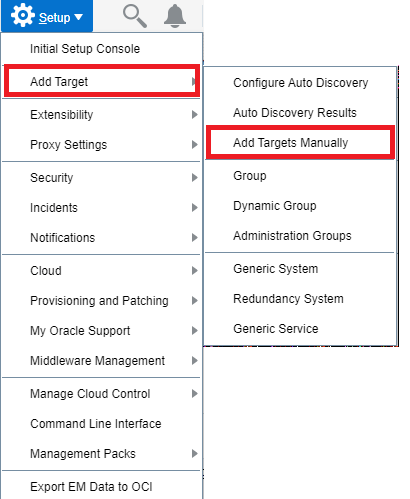
2. Navigate to Setup > Add Target > Add Targets Manually
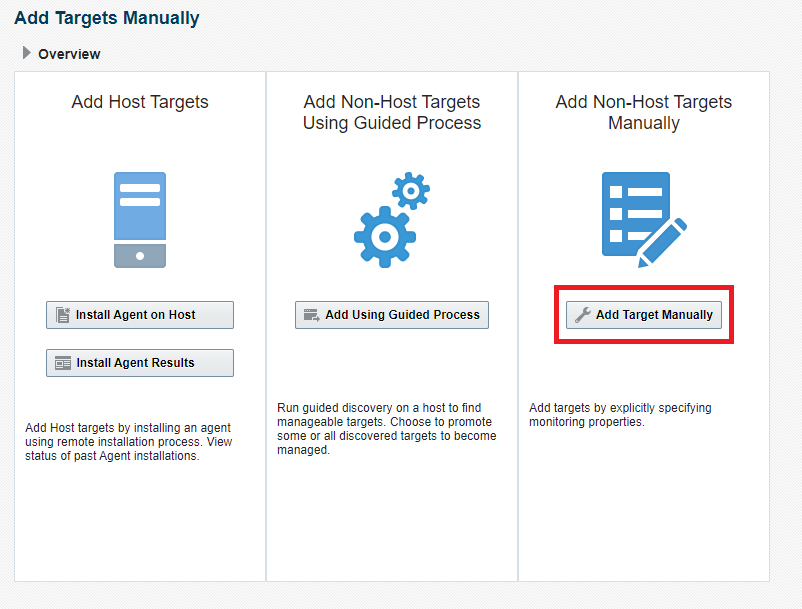
3. Click on Add Target Manually
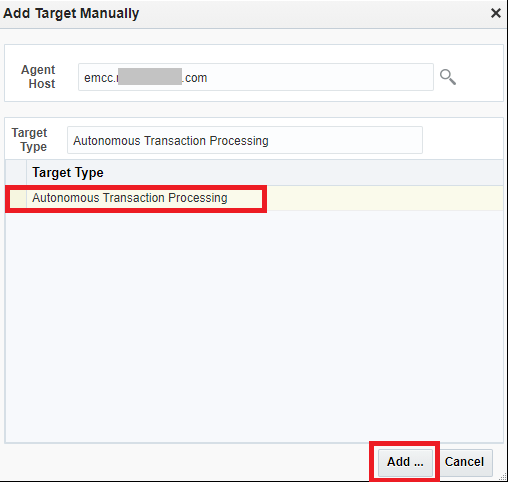
4. Specify the Agent host that will be remotely monitoring the Autonomous Database.
(In my example, I will be using the EM Agent Host running on my OMS host: emcc.xxx.com, this EM agent can be on any host)
Choose Target Type (eg. Autonomous Transaction Processing)
Click Add
5. Complete the details for the Autonomous Database and then click on Test Connection
- Target Name
- Upload the Credential Wallet for the Autonomous Database
- Wallet Password
- Service Name
- Monitoring Username (eg. adbsnmp) and password
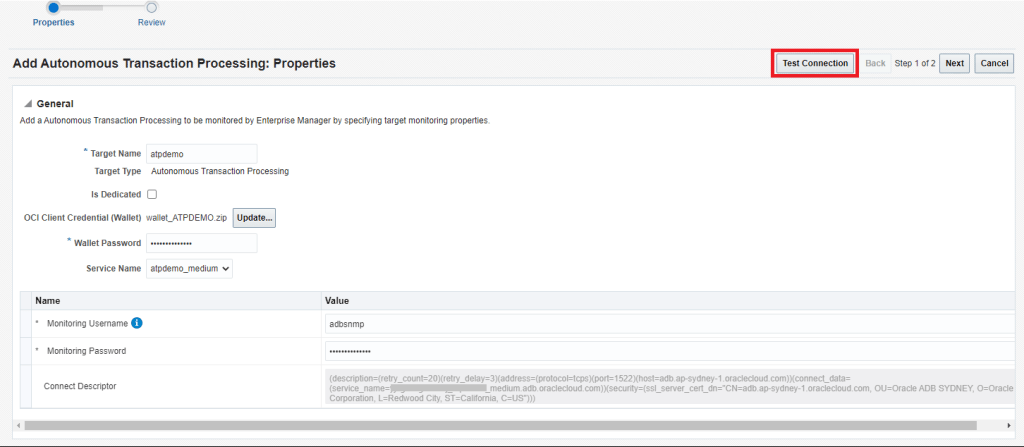
Verify Connection is Successful
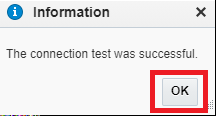
6. Click on Next

7. Review Details and then click on Submit

8. The target should now be discovered successfully.

9. From EM menu, navigate to TARGETS > DATABASES
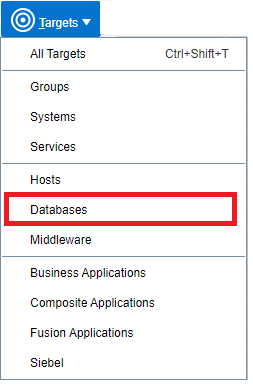
10. You should now see the Autonomous Database discovered in the Database Target Page
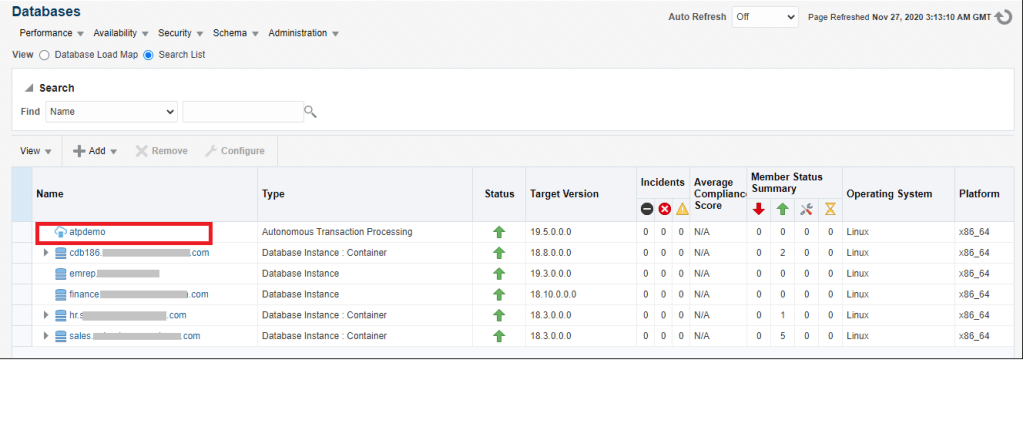
This completes the discovery of the Autonomous Database in Enterprise Manager.
How to Connect Oracle GoldenGate Veridata Agent to Autonomous Data Warehouse
This post demonstrate how to connect the Oracle GoldenGate Veridata to Autonomous Data Warehouse (ADW) and Autonomous Transaction Processing (ATP) by using the Oracle Wallet.
Downloaded the Wallet_ADWTESTDB.zip from the ADW/ATP console.
Unzip the Wallet in the location
$ unzip Wallet_ADWTESTDB.zip

Archive: Wallet_ADWTESTDB.zip

inflating: cwallet.sso

inflating: tnsnames.ora

inflating: truststore.jks

inflating: ojdbc.properties

inflating: sqlnet.ora

inflating: ewallet.p12
inflating: keystore.jks
Add the following into sqlnet.ora
WALLET_LOCATION = (SOURCE = (METHOD = file) (METHOD_DATA = (DIRECTORY="/home/oracle/cert/Wallet_ADWTESTDB")))

SSL_SERVER_DN_MATCH=no
Remove the comment for the following line in ojdbc.properties
oracle.net.wallet_location=(SOURCE=(METHOD=FILE)(METHOD_DATA=(DIRECTORY=${TNS_ADMIN})))
Copy the jdbc jars into Oracle GoldenGate Veridata Agent installed location
$ ls -ltr /u01/app/oracle/product/veridata23c_agent/agent/drivers/ojdbc8.jar
-rw-r----- 1 oracle oinstall 4535290 Nov 2 2:20 /u01/app/oracle/product/veridata23c_agent/agent/drivers/ojdbc8.jar
Point the Veridata Agent to pick the jdbc 18.3 jars with the following entries in agent.properties
server.jdbcDriver=ojdbc8.jar
server.driversLocation = /u01/app/oracle/product/veridata23c_agent/agent/drivers
Change the database url
database.url=jdbc:oracle:thin:@adwtestdb_low?TNS_ADMIN=/home/oracle/cert/Wallet_ADWTESTDB
Start the agent
$ ./agent.sh stop
$ ./agent.sh start agent.properties
OCI : How to copy/move files from Linux machine to object storage
- You need to go to your bucket details and click on the right side to open the tab with “Pre-Authenticated Requests”
- Click on “Create Pre-Authenticated Request”, choose the name and expiration time for the link.
- The link will appear in a pop-up window only once, and you have to copy and save it if you want to use it later. If you have forgotten to do that it is not a problem you can create another one
- Now move the file from the command line to the object storage
$ curl -T test_file.out https://namespace.objectstorage……
$curl -X PUT -T test_file.out https://namespace.objectstorage.ap-sydney-1.oci.customer-oci.com/p/5S651g2nLPB9K5-6L64vniabeSlEU_caURJsTxxiUgA-PPpa-RoHBN2gBdsodndg/n/namespace/b/bucket_name/o/ --limit-rate 200k -v
How to Connect to an Oracle Autonomous Database
Connecting to an Autonomous Database using SQL Developer
Firstly download a wallet for an Autonomous Database.
Overview>Autonomous Database>Autonomous Database details>Database connection>Wallet type ( Instance wallet )>Download by giving password.
Then open SQL Developer on your local computer. In the Connections panel, right-click Connections and select New Connection.

Connecting to an Autonomous Database using tnsnames.ora
Copy and unzip the wallet file under TNS_ADMIN:
$ cat sqlnet.ora
WALLET_LOCATION = (SOURCE = (METHOD = file) (METHOD_DATA = (DIRECTORY="/home/oracle/ADWDB_WALLET")))
SSL_SERVER_DN_MATCH=no
$ sqlplus admin@adwdb_high
SQL*Plus: Release 19.0.0.0.0 - Production on Tue Oct 1 13:13:45 2024
Version 19.23.0.0.0

Copyright (c) 1982, 2023, Oracle.  All rights reserved.

Enter password:
Last Successful login time: Tue Oct 01 2024 13:08:39 +10:00

Connected to:
Oracle Database 19c Enterprise Edition Release 19.0.0.0.0 - Production
Version 19.25.0.1.0

SQL>
Connecting to an Autonomous Database with an Easy Connect String
$ sqlplus admin@tcps://adwdb.adb.ap-melbourne-1.oraclecloud.com:1522/g12345f7da5af88_adwdb_high.adb.oraclecloud.com?ssl_server_dn_match=no

SQL*Plus: Release 19.0.0.0.0 - Production on Tue Oct 1 13:21:15 2024
Version 19.23.0.0.0

Copyright (c) 1982, 2023, Oracle.  All rights reserved.

Enter password:
Last Successful login time: Tue Oct 01 2024 13:13:52 +10:00

Connected to:
Oracle Database 19c Enterprise Edition Release 19.0.0.0.0 - Production
Version 19.25.0.1.0

SQL>
Without “ssl_server_dn_match=no”, you might get “ORA-29002: SSL transport detected invalid or obsolete server certificate.”
$ sqlplus admin@tcps://adwdb.adb.ap-melbourne-1.oraclecloud.com:1522/g12345f7da5af88_adwdb_high.adb.oraclecloud.com

SQL*Plus: Release 19.0.0.0.0 - Production on Tue Oct 1 13:31:45 2024
Version 19.23.0.0.0

Copyright (c) 1982, 2023, Oracle.  All rights reserved.

Enter password:
ERROR:
ORA-29002: SSL transport detected invalid or obsolete server certificate.


Enter user-name:
You can put both “ssl_server_dn_match’ and “wallet_location” in command line together:
$  sqlplus admin@tcps://adwdb.adb.ap-melbourne-1.oraclecloud.com:1522/g12345f7da5af88_adwdb_high.adb.oraclecloud.com?ssl_server_dn_match=no?wallet_location=/home/oracle/ADWDB_WALLET

SQL*Plus: Release 19.0.0.0.0 - Production on Tue Oct 1 13:39:31 2024
Version 19.23.0.0.0

Copyright (c) 1982, 2023, Oracle.  All rights reserved.

Enter password:
Last Successful login time: Tue Oct 01 2024 13:38:54 +10:00

Connected to:
Oracle Database 19c Enterprise Edition Release 19.0.0.0.0 - Production
Version 19.25.0.1.0

SQL>
 Make DBA Life Easy