VirtualBox shared folder is not working, Kernel headers not found for target kernel, Unable to Install Guest Additions on Oracle Linux 7.7

VirtualBox shared folder is not working, and the VirtualBOx shows below warning message:

“The VirtualBox Guest Additions do not appear to be available on this virtual machine, and shared folders cannot be used without them. to use shared folders inside the virtual machine, please install the Guest Additions in they are not installed, or re-install them if they are not working properly, by selecting Insert Guest Additions CD image from the Devices menu. if they are installed but the machine is not yet fully started then shared folders will be available once it.”

VirtualBox Guest Additions Error

After selecting Insert Guest Additions CD image from the Devices menu, we can see the Additions CD images are mounted.

Insert Guest Additions CD image

But the shared folder is still not working.

[root@racnode1 media]# df -h
Filesystem           Size  Used Avail Use% Mounted on
devtmpfs             4.8G     0  4.8G   0% /dev
tmpfs                2.0G  645M  1.4G  32% /dev/shm
tmpfs                4.8G  8.6M  4.8G   1% /run
tmpfs                4.8G     0  4.8G   0% /sys/fs/cgroup
/dev/mapper/ol-root   61G   33G   29G  53% /
/dev/sda1            497M  120M  377M  25% /boot
tmpfs                973M     0  973M   0% /run/user/0
[root@racnode1 media]#

Now we manually mount the Additions CD images:

[root@racnode1 ~]# mount /dev/cdrom /media/cdrom
mount: /dev/sr0 is write-protected, mounting read-only
[root@racnode1 ~]#

Install Guest Additions CD Image manually with errors.

[root@racnode1 ~]# cd /media/cdrom
[root@racnode1 cdrom]# ls -ltr
total 45524
-r--r--r-- 1 root root 763 Mar 13 2019 AUTORUN.INF
-r-xr-xr-x 1 root root 6384 Mar 13 2019 autorun.sh
-r-xr-xr-x 1 root root 4821 Mar 13 2019 runasroot.sh
-r-xr-xr-x 1 root root 270616 Jan 13 22:08 VBoxWindowsAdditions.exe
-r-xr-xr-x 1 root root 9795088 Jan 13 22:09 VBoxWindowsAdditions-x86.exe
-r-xr-xr-x 1 root root 16776232 Jan 13 22:12 VBoxWindowsAdditions-amd64.exe
-r-xr-xr-x 1 root root 3949 Jan 13 22:21 VBoxDarwinAdditionsUninstall.tool
-r--r--r-- 1 root root 3744169 Jan 13 22:21 VBoxDarwinAdditions.pkg
-r-xr-xr-x 1 root root 6716837 Jan 13 22:21 VBoxLinuxAdditions.run
-r--r--r-- 1 root root 9287680 Jan 13 22:22 VBoxSolarisAdditions.pkg
-r--r--r-- 1 root root 547 Jan 13 22:26 TRANS.TBL
dr-xr-xr-x 2 root root 2652 Jan 13 22:26 OS2
dr-xr-xr-x 2 root root 1824 Jan 13 22:26 NT3x
dr-xr-xr-x 2 root root 792 Jan 13 22:26 cert

[root@racnode1 cdrom]# ./VBoxLinuxAdditions.run
Verifying archive integrity... All good.
Uncompressing VirtualBox 6.1.2 Guest Additions for Linux........
VirtualBox Guest Additions installer
Removing installed version 5.0.10 of VirtualBox Guest Additions...
Removing existing VirtualBox non-DKMS kernel modules[ OK ]
Copying additional installer modules ...
Installing additional modules ...
VirtualBox Guest Additions: Starting.
VirtualBox Guest Additions: Building the VirtualBox Guest Additions kernel
modules. This may take a while.
VirtualBox Guest Additions: To build modules for other installed kernels, run
VirtualBox Guest Additions: /sbin/rcvboxadd quicksetup <version>
VirtualBox Guest Additions: or
VirtualBox Guest Additions: /sbin/rcvboxadd quicksetup all
VirtualBox Guest Additions: Kernel headers not found for target kernel
4.14.35-1902.8.4.el7uek.x86_64. Please install them and execute
/sbin/rcvboxadd setup
modprobe vboxguest failed
The log file /var/log/vboxadd-setup.log may contain further information.
[root@racnode1 cdrom]#

There is no 4.14.35-1902.8.4.el7uek.x86_64 kernel header.

[root@racnode1 ~]# ls -ltr /usr/src/kernels/
drwxr-xr-x  3 root root   20 Jan  6 15:33 3.10.0-327.el7.x86_64
drwxr-xr-x  3 root root   20 Jan  6 15:33 3.10.0-229.el7.x86_64
[root@racnode1 ~]#

Ignore the misleading messages in /var/log/vboxadd-setup.log.

[root@racnode1 ~]# cat /var/log/vboxadd-setup.log
Could not find the X.Org or XFree86 Window System, skipping.

Check and install the following missing packages:

[root@racnode1 tmp]# yum install kernel-header* glibc-header*  
glibc-devel*  gcc-4* cpp*  kernel-uek-devel*

Then install Guest Additions again successfully.

[root@racnode1 cdrom]# ./VBoxLinuxAdditions.run
Verifying archive integrity... All good.
Uncompressing VirtualBox 6.1.2 Guest Additions for Linux........
VirtualBox Guest Additions installer
Removing installed version 6.1.2 of VirtualBox Guest Additions...
Copying additional installer modules ...
Installing additional modules ...
VirtualBox Guest Additions: Starting.
VirtualBox Guest Additions: Building the VirtualBox Guest Additions kernel
modules. This may take a while.
VirtualBox Guest Additions: To build modules for other installed kernels, run
VirtualBox Guest Additions: /sbin/rcvboxadd quicksetup <version>
VirtualBox Guest Additions: or
VirtualBox Guest Additions: /sbin/rcvboxadd quicksetup all
VirtualBox Guest Additions: Building the modules for kernel
4.14.35-1902.10.7.el7uek.x86_64.
[root@racnode1 cdrom]#
[root@racnode1 ~]# ls -ltr /usr/src/kernels/
drwxr-xr-x  3 root root   20 Jan  6 15:33 3.10.0-327.el7.x86_64
drwxr-xr-x  3 root root   20 Jan  6 15:33 3.10.0-229.el7.x86_64
drwxr-xr-x 24 root root 4096 Feb 23 02:54 4.14.35-1902.10.7.el7uek.x86_64
[root@racnode1 ~]#

And the shared folders are working now.

[root@racnode1 ~]# df -h
Filesystem           Size  Used Avail Use% Mounted on
...
..
.
/dev/sr0              57M   57M     0 100% /media/cdrom
12.2.0.1             932G  488G  444G  53% /media/sf_Software

[root@racnode1 ~]#

Appendix

Upgrade VirtualBox Additions from VirtualBox 6.1.2 to 6.1.4 successfully.

[root@racnode1 cdrom]# ./VBoxLinuxAdditions.run
Verifying archive integrity... All good.
Uncompressing VirtualBox 6.1.4 Guest Additions for Linux........
VirtualBox Guest Additions installer
Removing installed version 6.1.2 of VirtualBox Guest Additions...
Copying additional installer modules ...
Installing additional modules ...
VirtualBox Guest Additions: Starting.
VirtualBox Guest Additions: Building the VirtualBox Guest Additions kernel
modules. This may take a while.
VirtualBox Guest Additions: To build modules for other installed kernels, run
VirtualBox Guest Additions: /sbin/rcvboxadd quicksetup <version>
VirtualBox Guest Additions: or
VirtualBox Guest Additions: /sbin/rcvboxadd quicksetup all
VirtualBox Guest Additions: Building the modules for kernel
4.14.35-1902.10.7.el7uek.x86_64.
VirtualBox Guest Additions: Running kernel modules will not be replaced until
the system is restarted
[root@racnode1 cdrom]#

Microsoft SQL Server Versions List


Microsoft SQL Server Versions List

https://sqlserverbuilds.blogspot.com/?_sm_au_=iHVkRTWZkQ346ff32sfHjK0s0FFFG#sql2017x

Please show your generosity to help us maintain and improve this website.
One-Time
Monthly
Yearly

Make a one-time donation

Make a monthly donation

Make a yearly donation

Choose an amount

¤5.00
¤15.00
¤100.00
¤5.00
¤15.00
¤100.00
¤5.00
¤15.00
¤100.00

Or enter a custom amount

¤

Your contribution is appreciated.

Your contribution is appreciated.

Your contribution is appreciated.

DonateDonate monthlyDonate yearly

How to Disable RAC Databases Automatic Startup

Sometimes we need disable automatic startup of RAC databases , due to server resource issues or server maintenance, etc. Here are a couple of common methods :

Subscribe to get access

Read more of this content when you subscribe today.

Create 12.2.0.1 Multitenant Database with DBCA

Here is an example of how to create a multitenant oracle database with DBCA in Oracle 12.2.0.1.

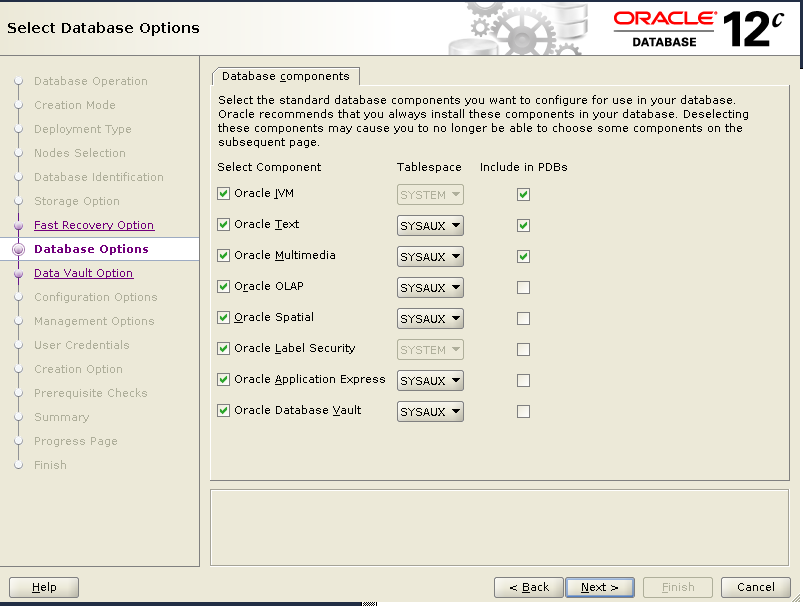
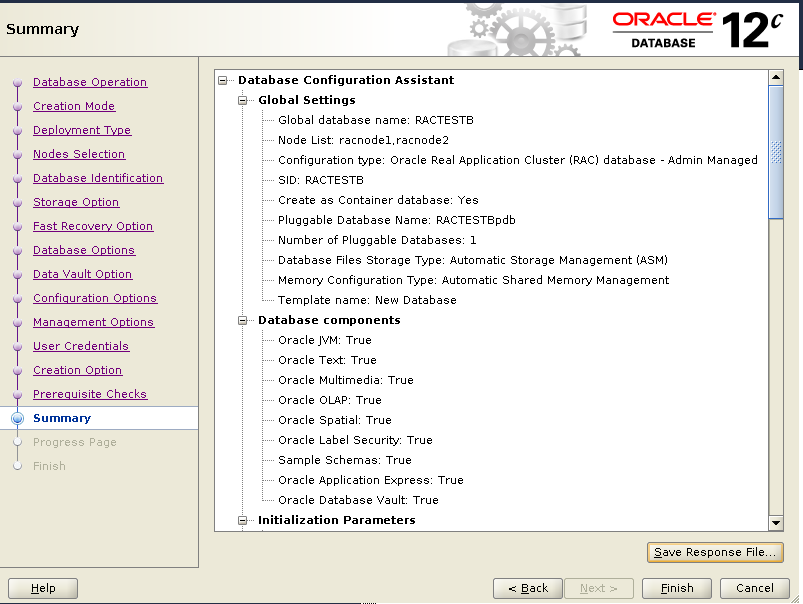
We will create a multitenant database with 1 CDB and 1 PDB. For CDB, all the components are selected and installed.  But for PDB, only following three components are selected and installed :

Oracle JVM 
Oracle Text
Oracle Multimedia

1)Startup VNCSERVER on node 1.

[oracle@racnode1 ~]$ vncserver :1

New 'racnode1.virtuallab:1 (oracle)' desktop is racnode1.virtuallab:1

Starting applications specified in /home/oracle/.vnc/xstartup
Log file is /home/oracle/.vnc/racnode1.virtuallab:1.log

[oracle@racnode1 ~]$

2) Open VNC Viewer .

3) Startup DBCA.

[oracle@racnode1 ~]$/u01/app/oracle/product/12.2.0/dbhome_1/dbca
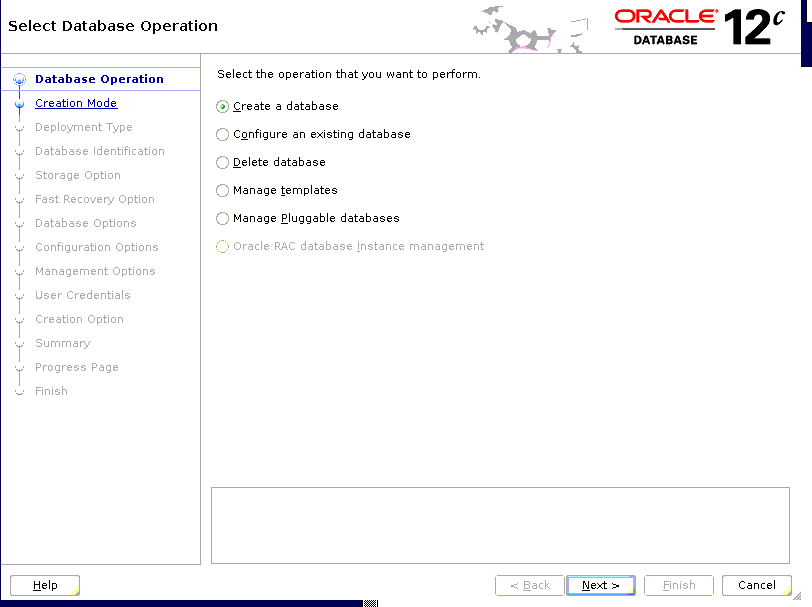
dbca Create a database

4) Choose “Create a database”
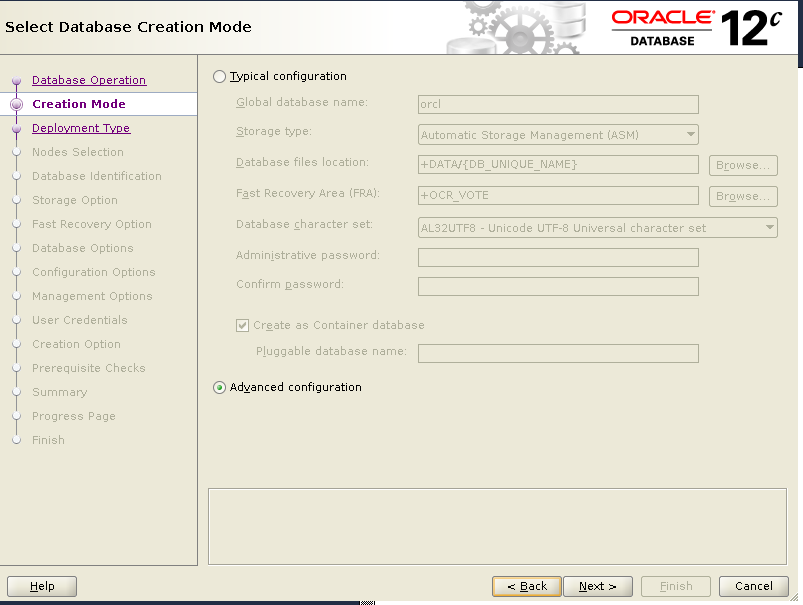
“Advanced configuration”
“Custom database”
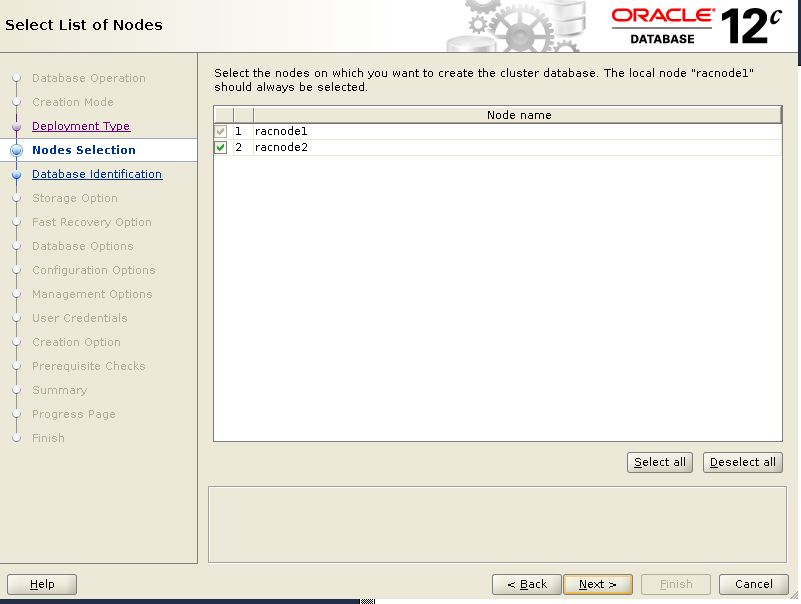
“Select all” nodes
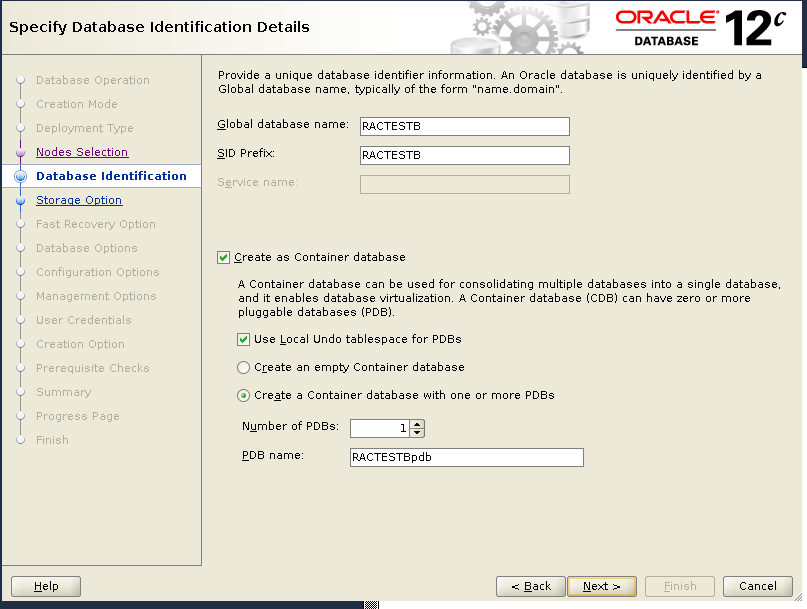
Put in Database Name, SID, PDB details.

..
.

dbca Advanced configuration
dbca select nodes
dbca select nodes
dbca database name
dbca database name
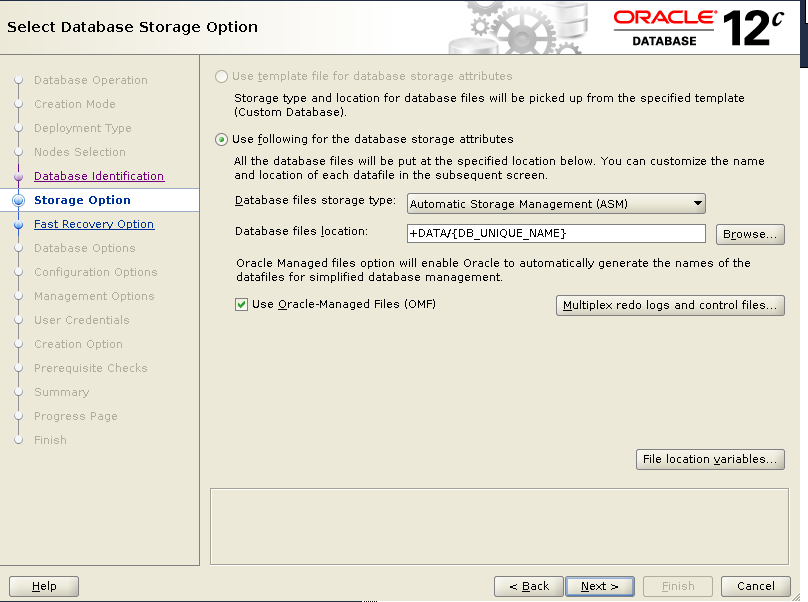
dbca storage option
dbca storage option
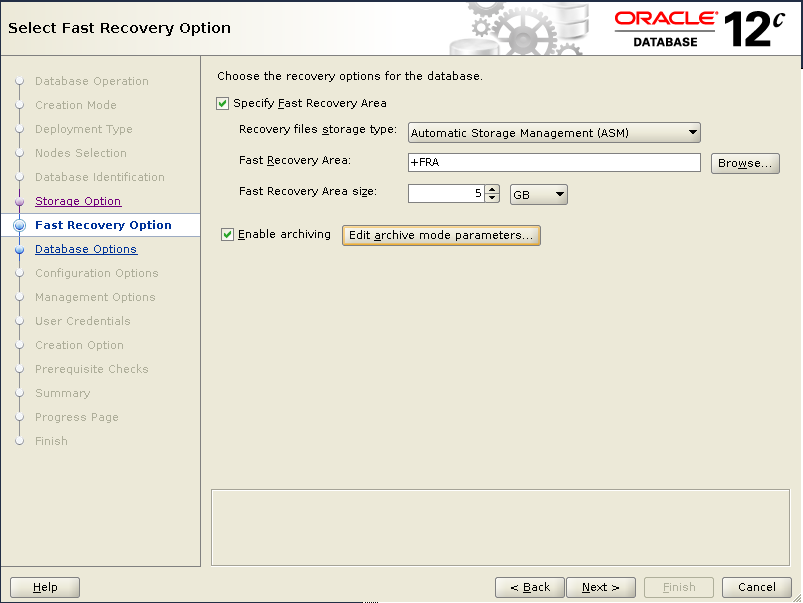
dbca FRA
dbca FRA
dbca database option
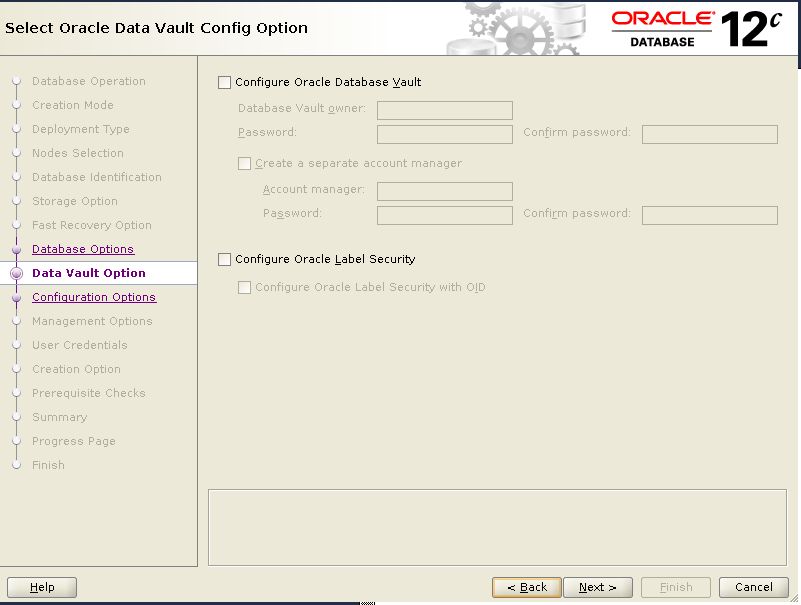
dbca data vault config option

Choose ASMM in memory option, otherwise you will get below error:

[DBT-11211] The Automatic Memory Management option is not allowed when the
            total physical memory is greater than 4GB.
dbca configuration option
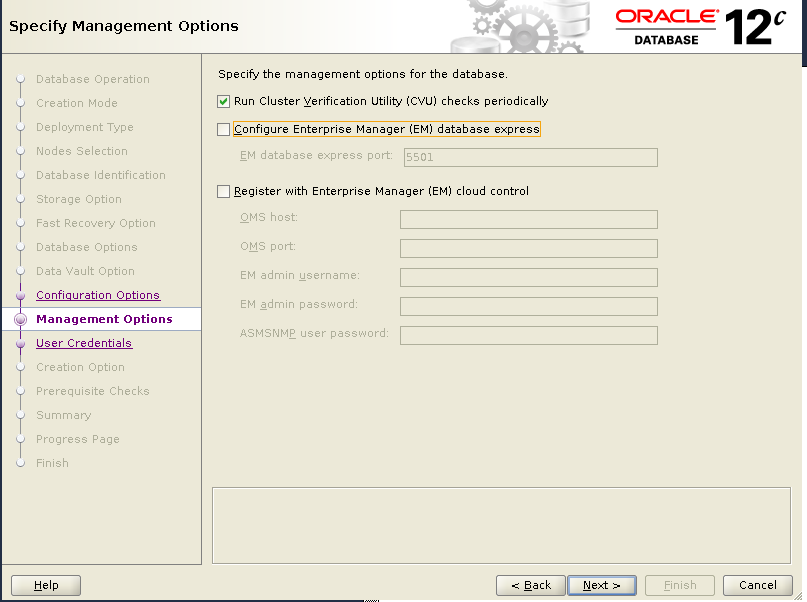
dbca management option
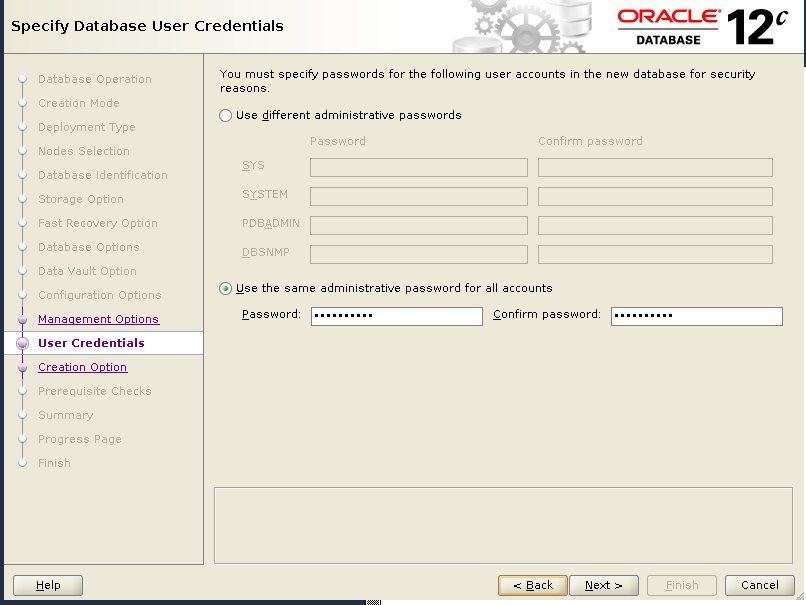
dbca user credentials
dbca creation option
dbca prerequisite Checks
dbca summary
dbca summary
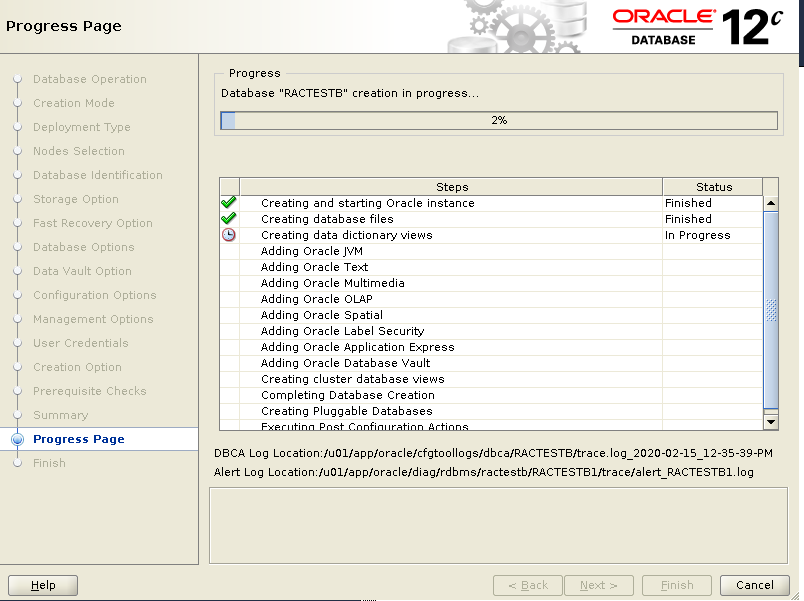
dbca Progress Page
dbca Progress Page
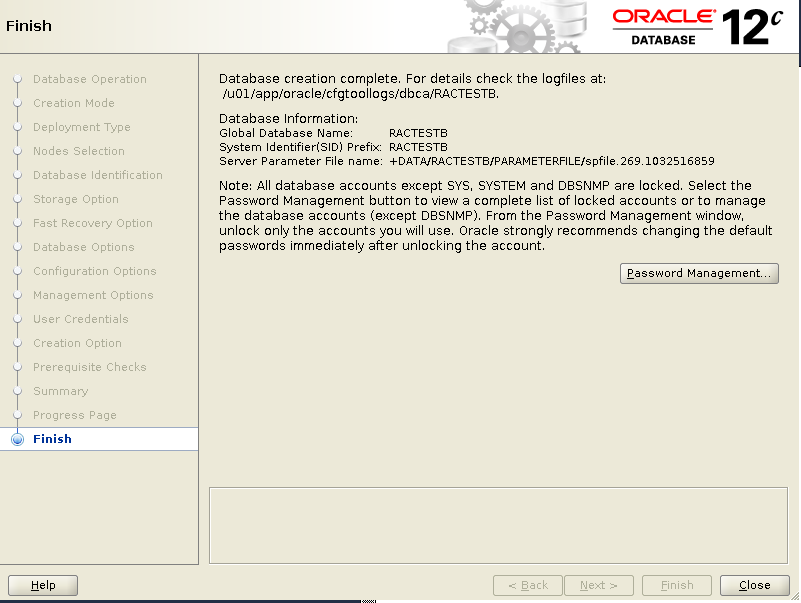
dbca Finish
dbca Finish

5) check the database.

[oracle@racnode1 ~]$ srvctl status database -d RACTESTB
Instance RACTESTB1 is running on node racnode1
Instance RACTESTB2 is running on node racnode2
[oracle@racnode1 ~]$
SQL>show con_name;

SQL>  show con_name;

CON_NAME
------------------------------
CDB$ROOT

SQL> select COMP_NAME, STATUS from dba_registry;

COMP_NAME                                STATUS
---------------------------------------- ----------------
Oracle Database Catalog Views            VALID
Oracle Database Packages and Types       VALID
JServer JAVA Virtual Machine             VALID
Oracle XDK                               VALID
Oracle Database Java Packages            VALID
OLAP Analytic Workspace                  VALID
Oracle Real Application Clusters         VALID
Oracle XML Database                      VALID
Oracle Workspace Manager                 VALID
Oracle Text                              VALID
Oracle Multimedia                        VALID
Spatial                                  VALID
Oracle OLAP API                          VALID
Oracle Application Express               VALID

14 rows selected.


SQL> alter session set container=ractestbpdb;

Session altered.

SQL> show con_name;

CON_NAME
------------------------------
RACTESTBPDB

SQL> select COMP_NAME, STATUS from dba_registry;

COMP_NAME                                STATUS
---------------------------------------- -----------
Oracle Database Catalog Views            VALID
Oracle Database Packages and Types       VALID
JServer JAVA Virtual Machine             VALID
Oracle XDK                               VALID
Oracle Database Java Packages            VALID
Oracle Real Application Clusters         VALID
Oracle XML Database                      VALID
Oracle Workspace Manager                 VALID
Oracle Text                              VALID
Oracle Multimedia                        VALID

10 rows selected.

[DBT-11211] The Automatic Memory Management option is not allowed when the total physical memory is greater than 4GB

In 12.2.0.1, when creating a multitenant CDB database by using DBCA, the below error occurs:

[DBT-11211] The Automatic Memory Management option is not allowed
            when the total physical memory is greater than 4GB
DBT-11211
DBT-11211

Workaround

Choose to use ASMM ( Automatic Shared Memory Management ) instead of AMM ( Automatic Memory Management ).

DBCA Memory Option
DBCA Memory Option