Unable to get logical block size for spfile ‘+OCR_VOTE/_mgmtdb/spfile-MGMTDB.ora’

SYMPTOM

In alert log of management DB in GI ( Grid Infrastructure ) environment, there are following errors everyday:

Fri Jul 03 00:54:36 2020
ERROR: Unable to get logical block size for spfile '+OCR_VOTE/_mgmtdb/spfile-MGMTDB.ora'.
Fri Jul 03 00:54:36 2020
ERROR: Unable to get logical block size for spfile '+OCR_VOTE/_mgmtdb/spfile-MGMTDB.ora'.
Fri Jul 03 00:54:36 2020
ERROR: Unable to get logical block size for spfile '+OCR_VOTE/_mgmtdb/spfile-MGMTDB.ora'.
Fri Jul 03 00:54:36 2020
ERROR: Unable to get logical block size for spfile '+OCR_VOTE/_mgmtdb/spfile-MGMTDB.ora'.
Fri Jul 03 00:54:36 2020
ERROR: Unable to get logical block size for spfile '+OCR_VOTE/_mgmtdb/spfile-MGMTDB.ora'.

Subscribe to get access

Read more of this content when you subscribe today.

CertUtil: The system cannot find the file specified

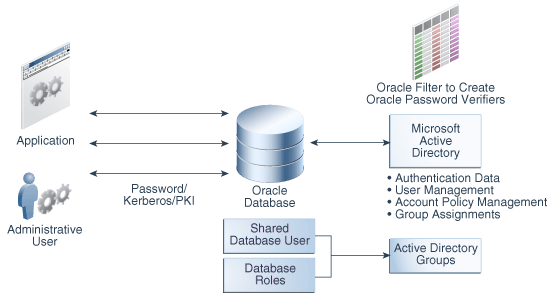
During implementation of Oracle Centrally Managed Users (CMU), the trusted certificate needs to be exported from Active Directory Server, then the following error message occurs :

c:\Windows\System32>certutil -ca.cert root.crt
CertUtil: The system cannot find the file specified.

Subscribe to get access

Read more of this content when you subscribe today.

Now export Certificate again Successfully.

c:\Windows\System32>certutil -ca.cert root.crt
CA cert[0]: 3 -- Valid
CA cert[0]:
-----BEGIN CERTIFICATE-----
MIIDhzCCAm+gAwIBAgIQa3rP+dtgrqFJ/gFo/3hB9jANBgkqhkiG9w0BAQsFADBW
...
..
.
41ZTwYcy4cntPwLHm6kTiWXKCMtYqf0poP5NUxjkiW3pf3IQnej4ZDCqLZ7a2JzJ
J3HbajXZzMaMAI9TyvIhF795EqX+XYgCdjwsbiJ3RD/ObJqwBjJWwTjcJA==
-----END CERTIFICATE-----

CertUtil: -ca.cert command completed successfully.
c:\Windows\System32>

Step by Step Setting Up SQL Server Always On Availability Group

This post demonstrates how to build SQL-Server High Availability feature Always On. All the step by step building procedures make use of Virtual machine, Windows OS, Networks, Active Directory Domain, DNS, Firewall, SQL Server, Clustering, etc.

Contents

Subscribe to get access

Read more of this content when you subscribe today.

How to Apply the Latest Cumulative Update for SQL Server

This post demonstrates how to apply the latest CU( Cumulative Update ) on SQL server 2019.

1)Download the latest CU4( KB4548597 ) for SQL Server 2019 for Windows here.

2) Record the current SQL 2019 version.

3) Run “SQLServer2019-KB4548597-x64” as Administrator.

a) On “license Terms” page, choose “I accept the license terms and Privacy Statement”.

b) On “select features” page, select all the SQL server 2019 instances, shared features and all installed components.

c) On “Consent to install Microsoft R Open” page, click “Accept”.

d) On “Consent to install Python” page, click “Accept”.

e) On “Check Files in Use” page, stop all the services on the list, and click “refresh check” until no more processes listed.

f) On “Ready to update page” page, review the features list. click “Update” if everything is satisfied.

g) On “Update Process” page, monitor the patching process until it is complete.

Reboot the Windows Server if requested.

4) Verify the upgraded SQL 2019 version.