This post demonstrates how to relink Oracle Grid Infrastructure ( GI ) and RAC Home binaries after OS upgrading or patching.
Subscribe to get access
Read more of this content when you subscribe today.

It is recommended to relink GI and RAC Home binaries after OS upgrading or patching.
This post demonstrates how to relink Oracle Grid Infrastructure ( GI ) and RAC Home binaries after OS upgrading or patching.
Read more of this content when you subscribe today.
There are a couple of ways to deinstall an OEM agent: from OEM Console, in silent mode, by running runInstaller, by running AgentDeinstall.pl, etc.
This post shows different kind of ways available for uninstalling an Oracle 12c EM agent.
Before starting to uninstall an agent, stop OEM agent first.
$ emctl stop agent
Read more of this content when you subscribe today.
While running “crsctl setperm” from 12.1.0.2 GI environment, CRS-4995 error occurred.
1. Run the command as grid user.
$ crsctl getperm resource ora.testdb.test.svc
Name: ora.testdb.test.svc
owner:oracle:rwx,pgrp:oinstall:r--,other::r--,group:dba:r-x,user:grid:r-x

$crsctl setperm resource ora.testdb.test.svc -u 'pgrp:oinstall:r-x' CRS-4995: The command 'Setperm resource' is invalid in crsctl. Use srvctl for this command.
Read more of this content when you subscribe today.
It is a great way to quickly build your own lab by using free Oracle VirtualBox, Windows evaluate Windows Server and SQL Server, etc.
Windows 2012 evolution has been installed onto VirtualBox in previous post. Now it is time to install SQL server 2014.
Read more of this content when you subscribe today.
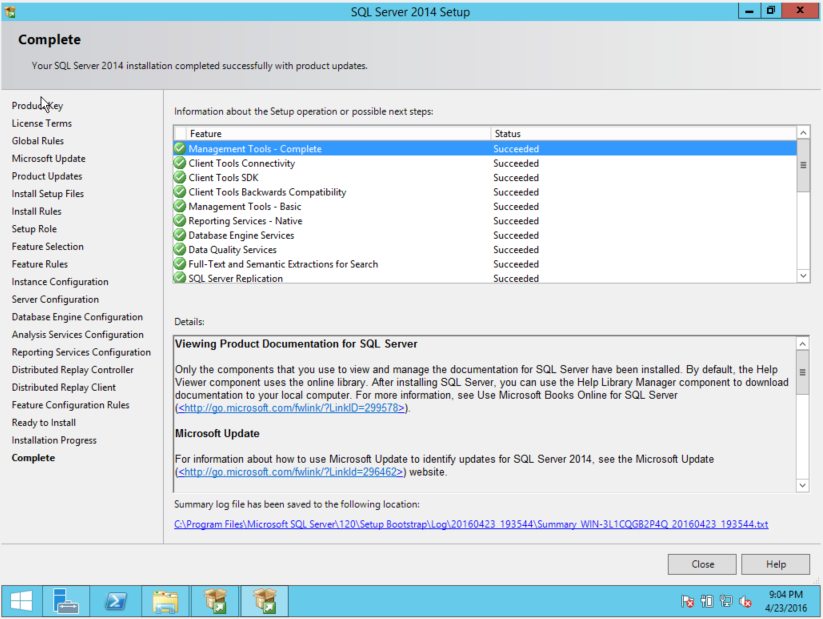
23. Installation is successful.
Oracle VirtualBox can be used to create Linux, Windows , Solaris, BSD, IBM OS/2 and Mac OSx virtual machines, etc. URL for downloading VirtualBox https://www.virtualbox.org/wiki/Downloads
This post demonstrates how to install Windows Server 2012R2 evaluation version onto Oracle VirtualBox.

2. Start Oracle Virtual Manager, Select NEW.
Name: Windows Server 2012R2
Type: Microsoft Windows
Version: Windows 2012(64-bit)

3. Give 5120M memory size depending on availability.

4. Create an virtual hard disk.
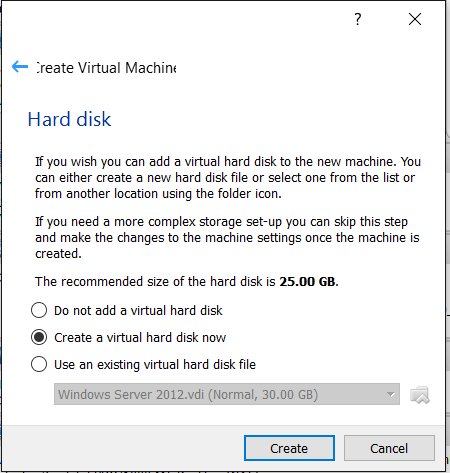
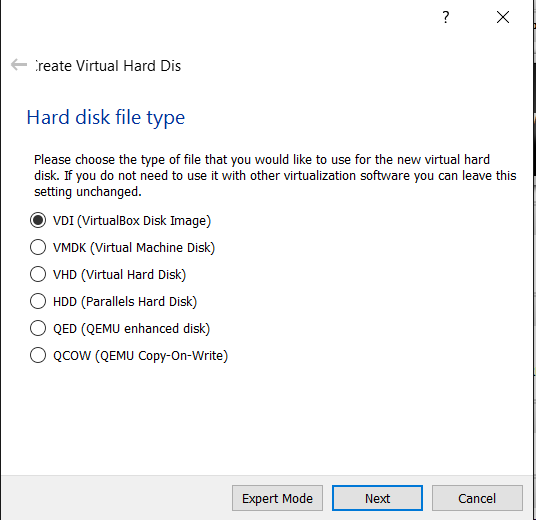
5. Choose “VDI( VirtualBox Disk Image)“.
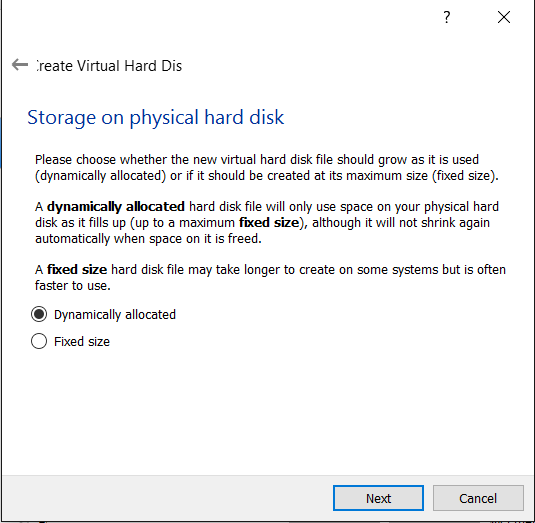
6. Choose “Dynamically allocated“.
7. Give size 30GB.
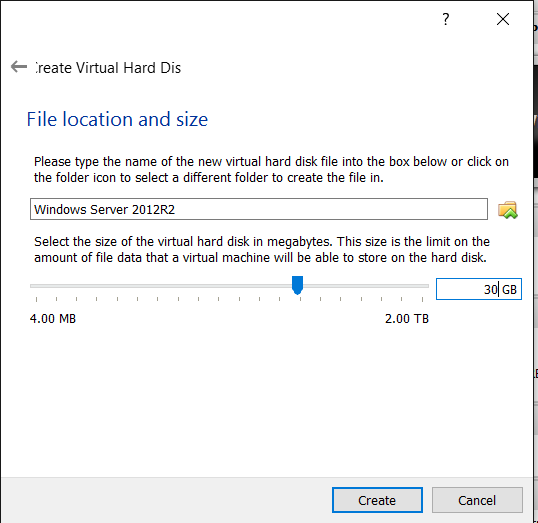
8. Also you can choose where the VDI image file located.
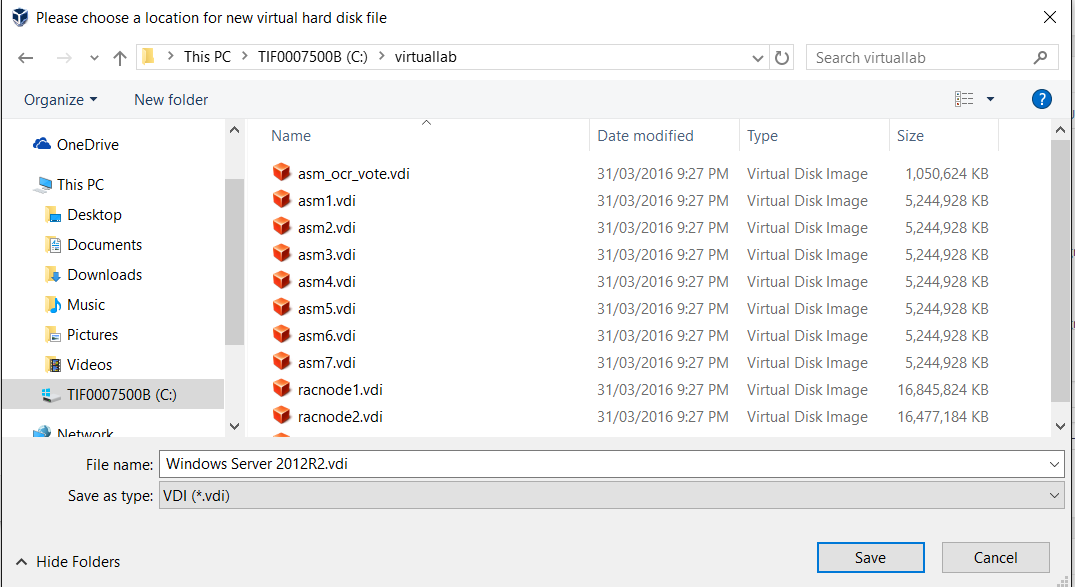
9. Click “create” to create “Windows Server 2012R2” virtual machine.

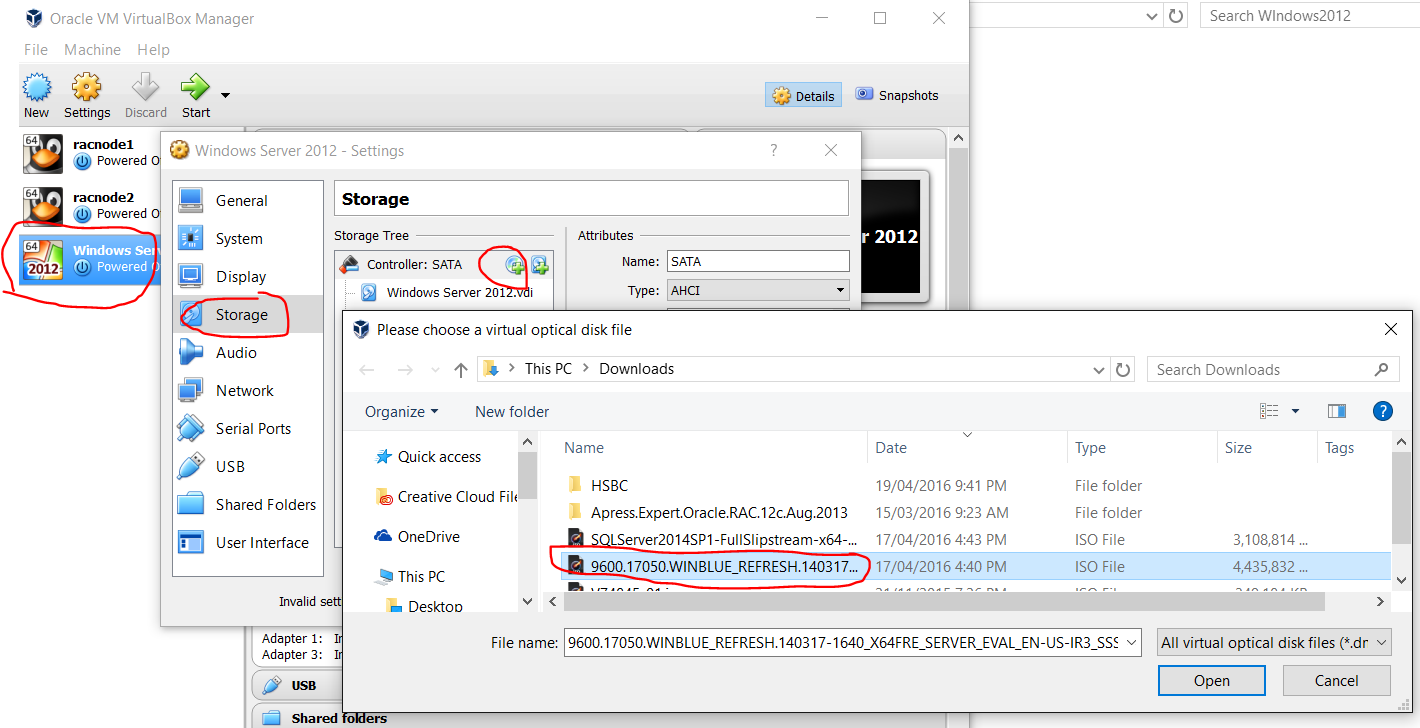
10. Now attach the ISO image to the virtual CD/DVD drive by :
a)Ensure the Windows Server 2012R2 VM is selected and click Settings.
b)Select Storage. Click on Empty under IDE Controller.
c)In the Attributes section, click on “+”sign for adding optimal disk.
d)Select “Choose a disk file”.
e)Browse to the location where you saved the Windows DVD ISO file and select it.
f)Click Open.
g)It should look similar to the following graphic.
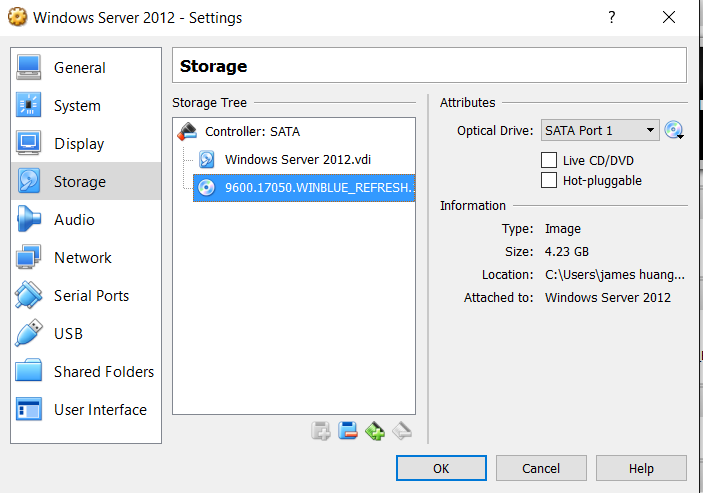
11) Now we can install Windows 2012R2 .
a)Select the Windows Server 2012R2 VM in VirtualBox and click Start.
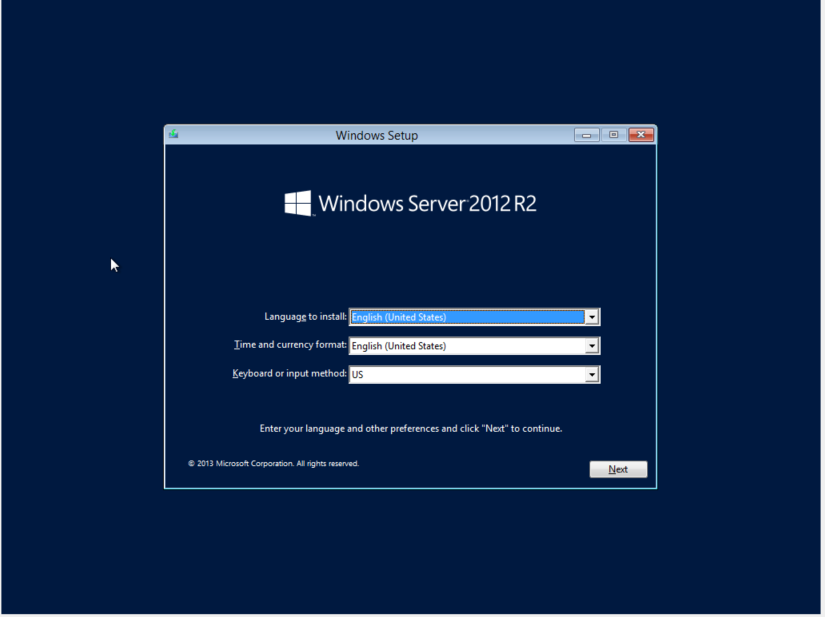
When the Install screen appears, click Next.
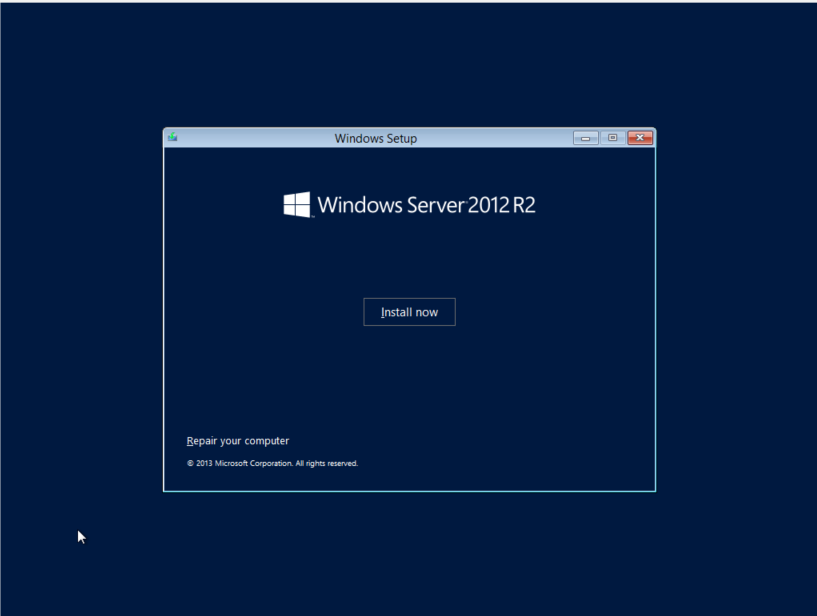
b)Click Install Now.
c)Select 2012 evalution Datacenter (Server with a GUI) and click Next. The Server Core installation includes a command prompt but not a graphical user interface (GUI).
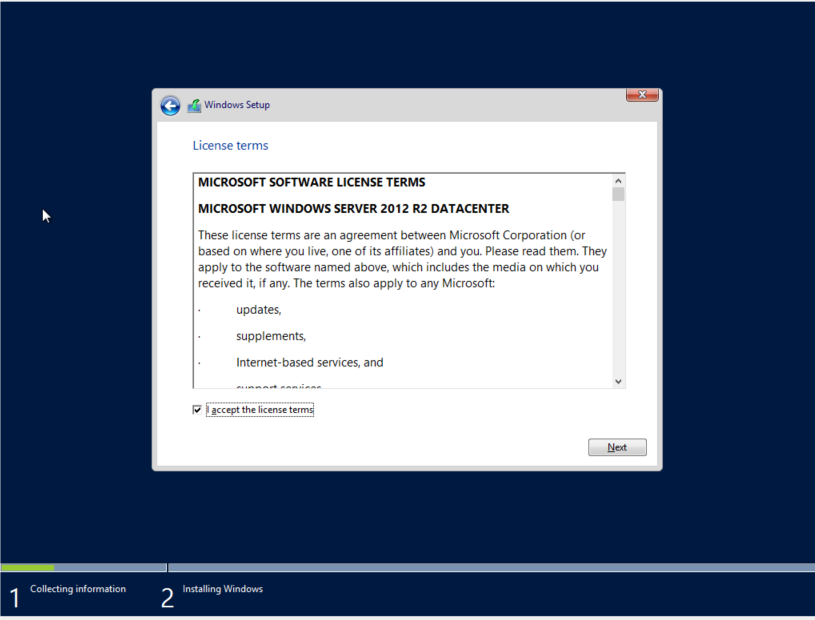
d)Review the license terms, select the checkbox to accept the license terms, and click Next.
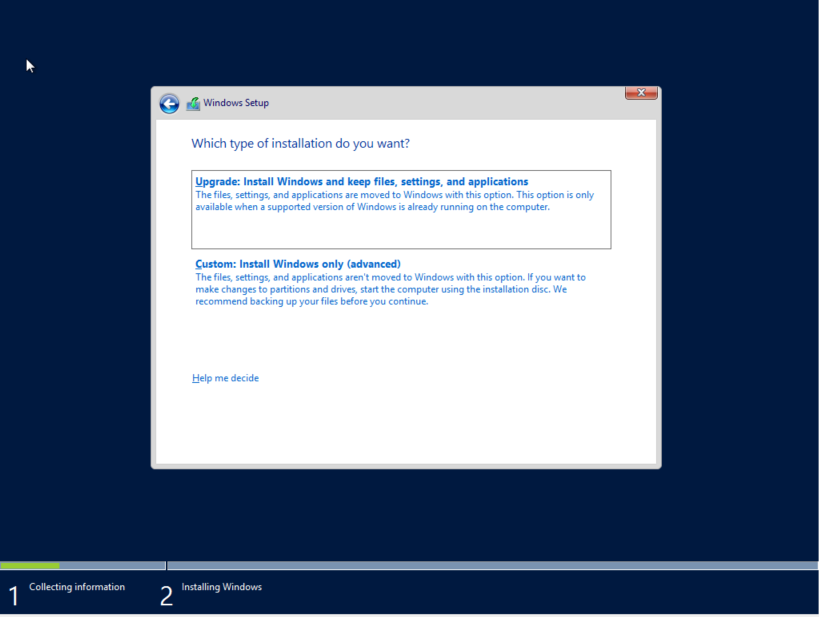
e) Select Custom: Install Windows only (advanced).
f) The 30 GB drive you created with the VM will be selected as Drive 0 Unallocated Space. Click Next.

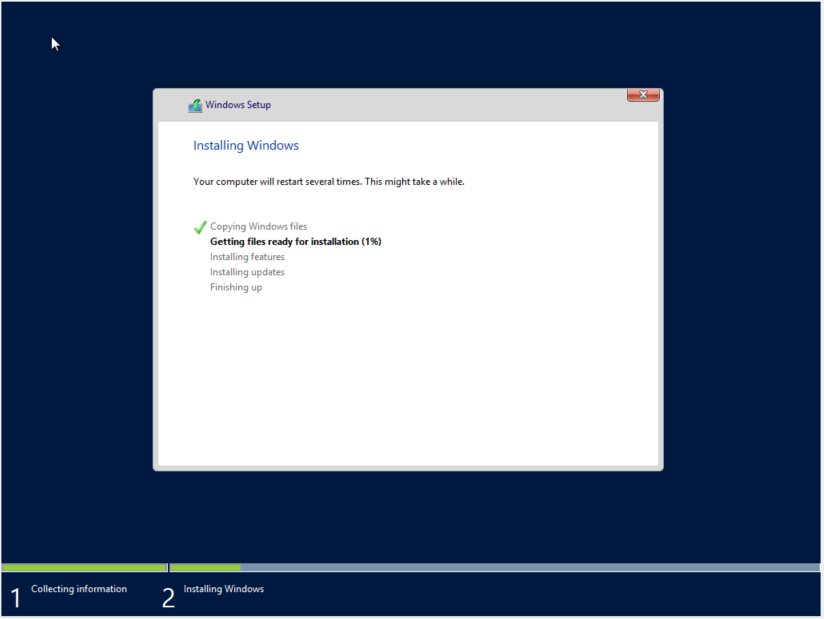
g)The installation will begin .
h)When prompted, enter a password for the Administrator account in the Password and Retype password text boxes. Click Finish.


To log on Windows Server 2012R2, press the host key plus the Delete key to simulate the CTRL + ALT + DELETE key combination. The host key is the right-CTRL key by default.
 Make DBA Life Easy